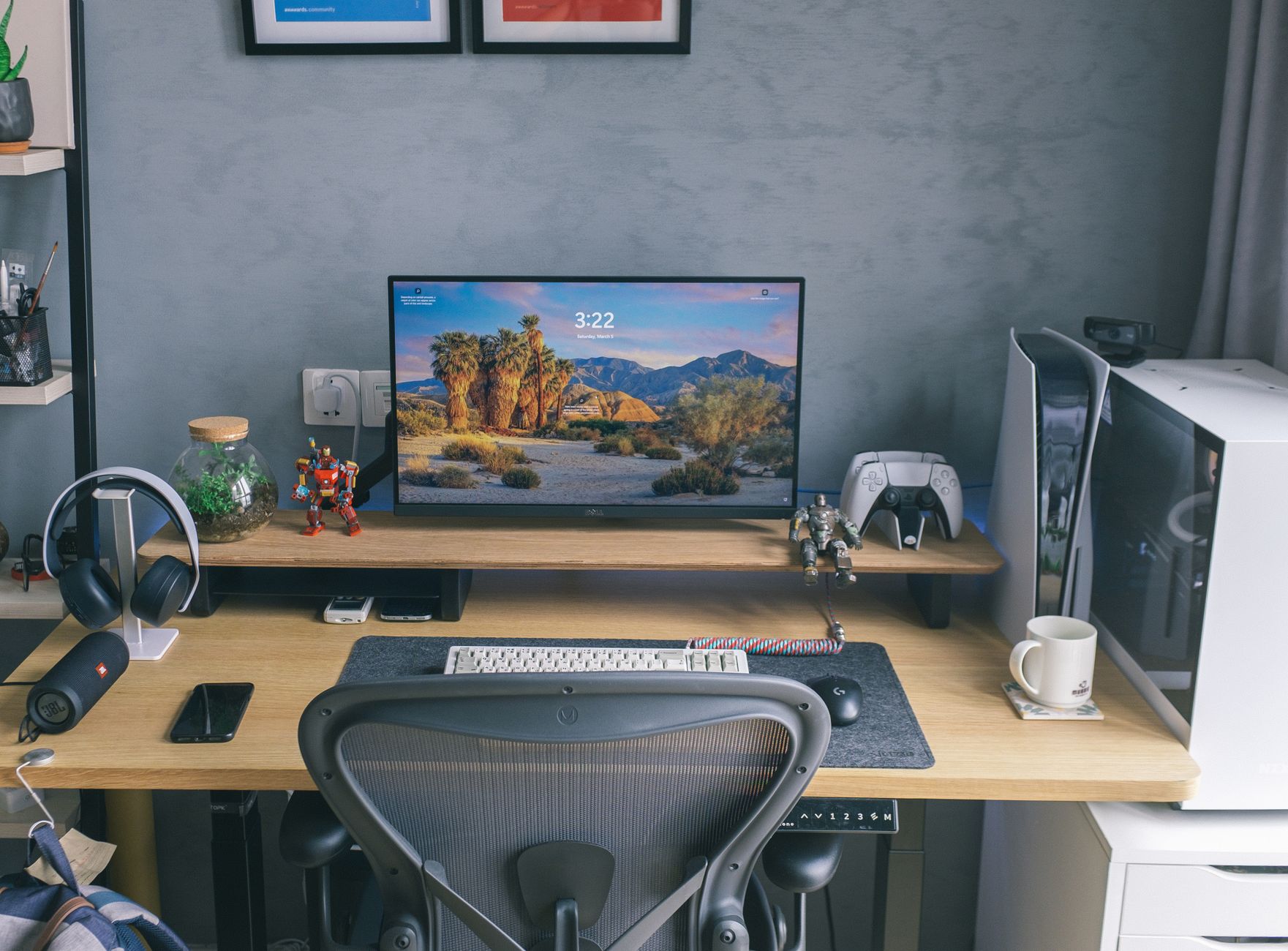
What’s the best 27-inch monitor for a home office in 2026? For most remote workers, the comparison comes down to two monitors: the LG 27UN880-B (4K, USB-C, ergo stand) and the Dell UltraSharp U2723QE. Both deliver color accuracy, eye comfort, and the connectivity a modern home office actually needs.
That said, “best” is doing a lot of work in that sentence. Here’s exactly what matters and why.
Why is 27 inches the sweet spot for home office monitors?
At a typical desk distance of 50–70 cm, a 27-inch display gives you enough room to have two documents side-by-side without feeling like you’re watching a cinema. At 24 inches you’re constantly zooming or squinting. At 32 inches you’re turning your head to track content across the panel — which causes real fatigue over a long workday.
The 27-inch format also hits a resolution sweet spot. At this size, 1440p looks sharp without demanding a powerful GPU. 4K at 27 inches sits around 163 PPI, noticeably crisper than the same resolution stretched across a 32-inch screen.
For remote workers clocking 6–10 hours on text, spreadsheets, video calls, and slide decks, this size-to-sharpness ratio is hard to beat.
What specs actually matter for home office work?
Most monitor spec sheets are padded with numbers that won’t change your daily experience. Here’s what genuinely does.
Resolution: 1440p vs 4K at 27 inches
1440p (2560×1440) is the practical choice for most people:
- Sharp enough for all productivity work
- Easier on your GPU — important on laptops or older machines
- Runs at full native resolution without scaling headaches on Windows
- Typically $150–$200 cheaper than a 4K equivalent
4K (3840×2160) is worth the premium if you:
- Edit photos or video professionally
- Work with detailed design mockups or UI at 1:1 scale
- Use an M-series Mac (macOS scales 4K at 200% beautifully, with no blurring)
- Read dense text all day and want the absolute crispest rendering
Don’t let anyone tell you 1440p is “not good enough” in 2026. On a 27-inch display, it still looks excellent.
Panel type: IPS vs VA vs OLED
IPS panels are the default recommendation for home offices. Wide viewing angles, accurate colors, consistent brightness — you can glance at your screen from the side during a call without color shift. Most monitors in this guide use IPS.
VA panels offer deeper blacks and higher contrast (2000:1 vs IPS’s typical 1000:1), which looks noticeably better for dark mode users. The trade-off is slightly slower pixel response and narrower viewing angles that show color shift past about 30 degrees off-center.
OLED is arriving at 27 inches but still carries a premium price and real burn-in risk for static office interfaces — taskbars, docked windows, status bars that never move. Worth monitoring, not worth buying yet for primary office use.
Ergonomics and connectivity
This is where buyers get burned most often. A great panel on a fixed-height stand is a pain — literally, after three months. Look for:
- Height adjustment (at least 130mm of range)
- Tilt and swivel (pivot to portrait mode is a meaningful bonus for coders)
- USB-C with Power Delivery (60W minimum; 90W+ for MacBook Pro users)
- Built-in USB hub (saves desk clutter and reduces cable chaos)
- HDMI 2.0 + DisplayPort 1.4 (for desktop users and secondary devices)
A monitor that skips USB-C or locks you into a fixed-height stand is a meaningful downgrade for anyone working from home full-time.
Which 27-inch monitors are actually worth buying in 2026?
Here’s a comparison of the top options across budgets and use cases:
| Monitor | Resolution | Panel | USB-C PD | Refresh Rate | Best For | Price (approx.) |
|---|---|---|---|---|---|---|
| LG 27UN880-B | 4K | IPS | 96W | 60Hz | Universal home office | $500–$550 |
| Dell UltraSharp U2723QE | 4K | IPS (Black) | 90W | 60Hz | Color work, longevity | $580–$630 |
| Samsung ViewFinity S80PB | 4K | IPS | 90W | 60Hz | Mac users | $500–$560 |
| LG 27QN600-B | 1440p | IPS | No | 75Hz | Budget productivity | $220–$260 |
| BenQ PD2725U | 4K | IPS | 96W | 60Hz | Design/creative pros | $700–$750 |
| ASUS ProArt PA279CRV | 4K | IPS | 96W | 60Hz | Color-critical work | $620–$670 |
Check Current Prices on Amazon: LG 27UN880-B → | Dell UltraSharp U2723QE → | Samsung ViewFinity S80PB → | LG 27QN600-B → | BenQ PD2725U → | ASUS ProArt PA279CRV →
Best overall: LG 27UN880-B
The Ergo stand alone justifies this monitor. It clamps to your desk, giving you a floating display that swings, tilts, rotates, and raises with almost no friction. Your entire desk surface opens up, and you can reposition the screen in seconds without loosening a single knob.
The panel is a 4K IPS with solid out-of-box accuracy (95% DCI-P3 coverage). USB-C delivers 96W — enough to charge a 14-inch MacBook Pro while running the display. The built-in USB hub handles peripherals cleanly, and LG’s support and firmware history on this line is mature.
The one real limitation: 60Hz. For pure productivity work, this doesn’t matter. If you also game or do motion-heavy video editing at your desk, factor that in.
Best for longevity: Dell UltraSharp U2723QE
Dell’s IPS Black panel is a genuine step up from standard IPS — contrast ratio hits 2000:1, giving you deeper blacks while maintaining the wide viewing angles IPS is known for. Text on dark backgrounds looks markedly better than on conventional IPS.
Build quality is exceptional. Dell’s UltraSharp line has a reputation for lasting 5–7 years without meaningful degradation, and that matters when you’re spending $600. The stand is excellent, the USB-C hub is robust (five downstream ports plus 90W PD), and color coverage — 98% sRGB, 95% DCI-P3 — handles creative work without recalibration out of the box.
If you want to buy one monitor, set it up, and not think about it again for the next five years, this is the pick.
Best budget option: LG 27QN600-B
Under $260, this monitor delivers. 1440p IPS panel, slim bezels, 75Hz refresh that feels smooth for productivity work, and accurate factory calibration. The stand adjusts for height, tilt, and swivel — all three axes, which many budget monitors skip entirely.
The missing feature is USB-C. You’ll need HDMI or DisplayPort, which is fine for desktop users but a genuine inconvenience if you’re running a laptop and wanted single-cable docking. Factor in a dock if that describes your setup.
Should you get a 1440p or 4K monitor for video calls and remote meetings?
Your monitor resolution doesn’t affect how you appear on video calls. The other person sees you through your webcam — not your display. Call quality depends on your camera and lighting, not pixel density.
Where resolution actually matters for remote work is your own screen real estate:
- 4K at 27 inches lets you run two browser windows side-by-side at 200% scaling and have both look pin-sharp. Or one window at full size with text rendering that feels almost print-quality.
- 1440p at 27 inches handles comfortable multitasking without the pixel density premium or the GPU overhead.
The practical question is: what machine are you connecting? Most business ultrabooks — ThinkPads, Dell XPS 13, Surface Laptop — don’t have dedicated GPUs. Pushing 4K at 27 inches through integrated graphics works, but can cause dropped frames and sluggish window rendering under heavy multitasking. On those machines, 1440p runs significantly smoother.
MacBook Pro M3 and M4, Windows machines with discrete GPUs, and desktop setups handle 4K at 60Hz without breaking a sweat.
What’s the best 27-inch monitor for Mac users?
Mac compatibility has improved across all brands, but a few monitors integrate more cleanly with macOS than others.
LG 27UN880-B connects to MacBooks over a single USB-C cable for power and data. Color management is accurate and consistent with macOS’s color pipeline. No Thunderbolt daisy-chaining, but for most users that’s not a requirement.
Samsung ViewFinity S80PB supports 4K at 60Hz over USB-C and includes a built-in KVM switch — useful if you’re toggling between a work Mac and a personal machine. The on-screen menu is among the cleanest for users doing screen management on macOS.
BenQ PD2725U is the premium pick for creative Mac users. Thunderbolt 4 lets you daisy-chain a second monitor or storage device with one cable from the laptop. Hardware calibration support and a built-in KVM make it the choice for studios running both macOS and Windows on the same desk.
Key things to look for in a Mac-compatible monitor:
- USB-C or Thunderbolt (not just HDMI — you lose Power Delivery and single-cable convenience)
- 90W+ Power Delivery (the 14-inch MacBook Pro pulls up to 96W under load)
- P3 wide color gamut (macOS renders P3 natively; monitors without it leave color on the table)
Are there features most buyers overlook that make a real difference?
Yes — and they tend to surface only after you’ve been using the monitor for a few months.
Flicker-free backlighting. Standard PWM dimming controls brightness by rapidly flickering the backlight at a frequency below conscious perception. It’s imperceptible in the moment, but cumulative over a full workday. Look for “DC dimming” or “flicker-free” certification — LG, Dell, and BenQ all include this in their home office lines.
Display uniformity. Budget panels often have noticeably brighter corners or subtle color casts across the screen. You won’t catch this in a review photo, but you’ll notice it after two weeks of reading white documents or working in spreadsheets. Dell UltraSharp panels are factory-tested for uniformity with individual calibration reports — that’s part of why they carry a price premium, and why it’s worth paying.
Blue light filtering. Not all implementations are equal. Hardware-level filtering (like BenQ’s Low Blue Light Plus or LG’s Reader Mode) tends to be more neutral than applying a yellow tint across the whole panel. Software alternatives — Windows Night Light, macOS Night Shift — work just as well and cost nothing extra.
Monitor audio. Built-in speakers on monitors are almost universally poor. If you’re on video calls daily, budget separately for a USB speakerphone or a decent headset rather than relying on the two 2W drivers tucked behind the panel.
How much should you spend on a 27-inch home office monitor?
You get meaningful improvement up to about $600. Returns diminish sharply after that unless your work is color-critical.
- Under $300: Solid 1440p IPS with a decent stand. A good starting point — don’t let the lower price tag suggest lower productivity.
- $300–$500: 4K IPS enters this range. USB-C becomes more common. Ergonomics improve noticeably. Samsung and LG both compete hard here.
- $500–$650: The best-value 4K monitors with USB-C docking, excellent stands, and reliable factory color accuracy. This is where most buyers should land.
- $650+: Thunderbolt 4 daisy-chaining, hardware calibration, factory-measured individual color profiles, premium build quality. Worth the investment for photographers, video editors, and designers who need display consistency.
One calculation worth making: a $350 monitor without USB-C that pushes you to buy a $100 dock ends up at $450. A $500 monitor with USB-C docking built in is the better deal — and it’s one less cable on your desk.
The right monitor for the best 27 inch monitors for home office shortlist comes down to three variables: your budget, your primary workload, and whether you’re connecting a laptop or a desktop. For most remote workers, the LG 27UN880-B or Dell UltraSharp U2723QE cover every base — and the ergonomic flexibility of either monitor will noticeably improve how you feel after a full day at your desk.
Start by checking current pricing on both. If you want the best stand and most flexible positioning, go LG. If you want the best panel longevity and tighter color consistency out of the box, go Dell. Either way, you’re set for years.
Frequently Asked Questions
Why is a 27-inch monitor the best size for home office work?
At typical desk distances of 50–70 cm, 27 inches provides enough space for two documents side-by-side without eye strain. Smaller monitors force constant zooming, while larger ones cause fatigue from head movement. This size also hits the ideal resolution sweet spot, making 1440p sharp without demanding a powerful GPU.
What are the top 27-inch monitors recommended for remote workers?
The LG 27UN880-B and Dell UltraSharp U2723QE are the leading options. Both deliver excellent color accuracy, eye comfort, and modern connectivity (USB-C support on the LG). They’re designed for the 6–10 hour daily workdays typical of home office professionals.
Should I choose 1440p or 4K resolution on a 27-inch monitor?
1440p (2560×1440) is the practical choice for most home office workers—it’s sharp enough for all productivity tasks without demanding high GPU power. While 4K at 27 inches reaches 163 PPI for extra sharpness, the performance trade-off doesn’t justify it for typical office work like documents, spreadsheets, and video calls.


