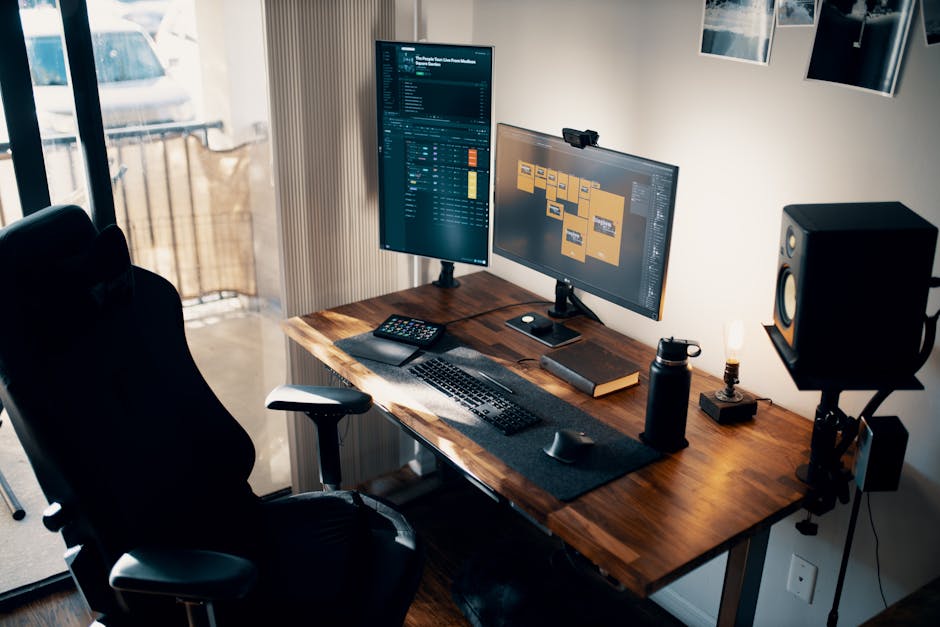
Spending $200 on a monitor light bar is almost never worth it — and the lighting industry has spent years convincing you otherwise.
The difference between a $30 budget pick and a $180 premium unit is mostly marketing, not photons. The physics of asymmetric desk lighting haven’t changed, and the core feature that actually reduces eye strain — a glare-free beam aimed at your keyboard, not your eyes — is available at a fraction of the flagship price.
That said, not every cheap light bar deserves your money. Some flicker at low brightness. Some have terrible color rendering that makes your face look green on video calls. Some clip to monitors so awkwardly they fall off mid-Zoom.
This guide cuts through it.
What Exactly Is a Monitor Light Bar, and Do You Actually Need One?
A monitor light bar is a long, slim LED strip that clips to the top edge of your monitor. Unlike a desk lamp, it illuminates your keyboard and workspace downward — not your screen — which eliminates the glare and reflections that cause eye strain during long sessions.
Standard desk lamps point light outward in a cone. That means some of it bounces off your monitor and straight into your eyes. Monitor light bars are asymmetrically designed to prevent exactly that.
If you work more than 4–5 hours a day at a screen, especially in low-light environments, the payoff is immediate: your monitor’s perceived contrast improves, your eyes feel less fatigued by mid-afternoon, and your workspace reads as more professional on video calls.
If you mostly work in a well-lit office with overhead lighting, a light bar is less essential — nice to have, not transformative.
What Should I Look for in a Budget Monitor Light Bar?
 Foto: stevepb
This is where most buyers get tripped up. They compare brightness numbers without understanding which specs actually matter for eye comfort.
Color Temperature and CRI
Color temperature is measured in Kelvin. Lower numbers (2700K–3500K) are warm and amber, like incandescent bulbs. Higher numbers (5000K–6500K) are cool and blue-white, like daylight.
For desk work:
- Morning/afternoon focus sessions: 4000K–5000K
- Evening wind-down work: 3000K–3500K
- Video calls where you need to look natural: 4000K–4500K
Adjustable color temperature is worth prioritizing, even in budget options. Most decent light bars under $40 now offer a range of at least 3000K–6500K.
CRI (Color Rendering Index) measures how accurately the light shows true colors compared to natural sunlight. A CRI of 80+ is acceptable. CRI 90+ is noticeably better, especially if you’re doing any design work, photo editing, or just want accurate color on your screen surroundings.
Most budget light bars sit at CRI 80–85. A few hit 90+. It’s worth checking the spec sheet.
Brightness Range and Dimming
Flicker is the hidden villain of cheap lighting. Some bargain LED drivers flicker at low brightness levels — imperceptible consciously, but enough to fatigue your eyes over a long session.
Look for:
- PWM dimming frequency of 1000Hz or higher (often listed as “no-flicker” or “PWM-free”)
- A wide dimming range (1%–100%, not just 10%–100%)
- Stepless dimming rather than discrete brightness levels
If you’re light-sensitive or prone to headaches, flicker-free certification is the most important spec on the list.
What Are the Best Budget Monitor Light Bars in 2026?
The budget light bar market has matured significantly. Manufacturers that were shipping BenQ ScreenBar clones two years ago are now producing genuinely competitive products — better build quality, smarter dimming, and wider color temperature ranges than the originals inspired.
Under $35 — Best Value Picks
Baseus i-wok Series 2 (~$28–32) This is the pick most remote workers end up recommending to friends. Stepless dimming dial, color temperature range of 2700K–6500K, and a CRI of 87 that outperforms most competitors at the price. The clip design accommodates monitors up to 30mm thick. USB-C powered, no dedicated controller — the dial is built into the light itself. Clean, minimal, and it just works.
QUNTIS Monitor Light Bar (~$25–30) A strong Baseus alternative with a touch sensor bar rather than a physical dial. Slightly narrower beam spread, which works better on monitors under 27 inches. CRI sits at 85. Gets bright enough to illuminate a full keyboard in near-darkness without issue.
Yeelight LED Monitor Light Bar 1S (~$30–35) Yeelight is Xiaomi’s lighting sub-brand, and the build quality reflects it — noticeably more solid than most competitors at this price. 2700K–6500K range, a clean magnetic clip design, and optional Bluetooth app control for scene automation. The physical controls work fine on their own. Confirmed flicker-free.
What to avoid in this price range: no-name white-label units under $18 on Amazon with no brand presence. Return rates are high, flicker complaints are common, and customer support is nonexistent when the clip snaps after two weeks.
$35–60 — When to Spend a Little More
Xiaomi Monitor Light Bar 1S (~$40–45) If you have a Xiaomi Mi Smart Home ecosystem, this integrates natively. Worth considering regardless: CRI 90, app control, wireless remote included, and USB-C passthrough so you don’t lose a port. The beam spread is wider than most competitors at this price, which matters on ultrawide setups.
BenQ ScreenBar Lite (~$59) Yes, BenQ makes this list — but only the Lite, not the flagship. This is specifically designed for laptop users with its clip-plus-flexible-arm configuration. Standard clip-style light bars won’t fit most laptop lids properly. The Lite solves that. The auto-dimming sensor works well. At $59, it sits at the top of the budget range, but it earns its place for laptop setups where nothing else fits.
Will a Cheap Monitor Light Bar Actually Reduce Eye Strain?

Yes — with caveats.
Eye strain from screen work has multiple causes: screen brightness too high relative to surroundings, blue light exposure late in the day, poor contrast, and — frequently — ambient light that hits your monitor and creates reflections.
A monitor light bar directly solves the ambient lighting problem by giving you a controlled, adjustable light source that illuminates your workspace without bouncing off your screen. Even a $25 unit does this effectively if the beam is properly asymmetric.
What a cheap light bar won’t fix:
- Screen settings: your monitor’s brightness, contrast, and color profile matter just as much. Start by calibrating your display to your environment.
- Monitor position: if your screen is too close, too far, or at the wrong angle, no amount of lighting fixes that.
- Blink rate: staring at screens reduces how often you blink. The 20-20-20 rule (every 20 minutes, look 20 feet away for 20 seconds) costs nothing.
A good light bar is one piece of a proper ergonomic setup — not a silver bullet.
How Do You Set Up a Monitor Light Bar Properly?
Setup is simpler than most people expect, but there are two mistakes that make even good light bars feel mediocre.
Mistake 1: Positioning it too far back The light bar should sit at the very front edge of your monitor’s top bezel. If it sits back even a centimeter, the beam can clip the bottom edge of the screen and create glare. Push it as far forward as the clip allows.
Mistake 2: Starting with maximum brightness Most people turn it on at full brightness, find it harsh, and either leave it there or abandon the product. Start at 30–40% brightness and adjust up only as needed. Pair it with slightly dimmed screen brightness. The goal is a workspace where your monitor and surrounding area feel lit from the same consistent source.
Getting the settings right:
- Daytime: 4500K–5500K, 50–70% brightness
- Evening: 3000K–3500K, 30–50% brightness
- Video calls: 4000K–4500K, 60–80% brightness (sit back slightly so the light hits your face evenly)
Cable management matters more than people expect. Most light bars are powered via USB-A or USB-C. If your monitor has a USB hub built in, route the cable there to keep your desk clean. Velcro cable ties are your friend.
Are There Any Downsides to Budget Monitor Light Bars?
 Foto: Andy Barbour
A few worth knowing before you buy.
Clip compatibility is a real issue. Most standard clips work with monitors 15mm–30mm thick. Curved monitors, ultra-thin bezels, and monitors with built-in webcams at the top all cause problems. Check your monitor’s top edge thickness before ordering. Many product listings specify this; most buyers skip it and then complain about wobble.
No memory function on some units. Cheap light bars often reset to default brightness and color temp when you unplug and replug them. If you have a specific setup you use every day, this gets annoying fast. Xiaomi and Yeelight units generally have memory; no-name brands often don’t.
Limited beam spread on 34"+ ultrawides. Most budget light bars are designed for 24"–32" monitors. If you’re on a 34" or wider ultrawide, you may find the edges of your desk are noticeably dimmer. The Xiaomi 1S has the widest spread at this price point and handles most ultrawides reasonably well, but nothing in the budget category perfectly covers a 49" superwide.
The wireless remotes on budget units are hit or miss. Some work flawlessly for years. Some lose sync after a month. If wireless control matters to you, stick to brands with actual warranty support — Yeelight and Xiaomi both honor claims through their official storefronts.
Frequently Asked Questions
Can I use a monitor light bar on a laptop screen?
Standard clip-style light bars won’t work on most laptops — the hinges and thin lids aren’t designed to support them, and most laptop screens are too thin for a stable clip. If you’re on a laptop, either use a freestanding desk lamp with a diffused bulb, or look at the BenQ ScreenBar Lite, which ships with an arm specifically designed for thinner displays.
Is the BenQ ScreenBar actually worth the $109 price tag over a $30 alternative?
For most remote workers — no. The BenQ ScreenBar’s main differentiator is its auto-dimming sensor, which adjusts brightness based on ambient light. That’s genuinely useful. But the $80 premium is hard to justify when a $35 Yeelight with manual adjustment works 95% as well. If you’re a designer who needs accurate color rendering (CRI 95+), the ScreenBar Halo starts making sense. For email, Slack, and general productivity work, a good budget unit is plenty.
Do I need to worry about blue light from LED monitor light bars?
Some, yes — particularly at higher color temperatures (5000K+) used in the evening. Blue light in the 415–445nm range can suppress melatonin and affect sleep quality when you’re exposed to it within 2–3 hours of bed. The practical fix is simple: drop your light bar to its warmest setting (2700K–3000K) in the evenings, and enable your monitor’s night mode or use software like f.lux. Cool-temperature light during the day is fine — it actually improves alertness and focus.
Our Pick: If We Could Only Choose One
 Foto: paulabassi2
For most remote workers, the Baseus i-wok Series 2 is the recommendation we’d give a friend. It hits every important spec — stepless dimming, 2700K–6500K range, CRI 87, no flicker — at under $32. The physical dial means no app dependency, no Bluetooth pairing, no extra steps. You clip it, plug it in, and dial it in.
If your monitor is 34" or wider, or if you want app integration and don’t mind spending slightly more, the Xiaomi Monitor Light Bar 1S at ~$42 is the next step up, with genuinely better build quality and a wider beam.
Either way, your eyes will thank you within the first week.
Frequently Asked Questions
What is a monitor light bar and do I really need one?
A monitor light bar is an LED strip that clips to your monitor’s top edge and illuminates your keyboard downward, eliminating glare. You need one if you work 4+ hours daily at a screen in low-light conditions — it noticeably reduces eye fatigue and improves perceived contrast.
Why is a budget light bar better than a $180 premium model?
The difference is mostly marketing, not performance. A $30–$60 budget light bar delivers the same core benefit — glare-free, downward-aimed lighting — without the premium markup. Physics haven’t changed; quality eye-strain reduction is available at a fraction of the flagship price.
What specs should I check when comparing budget monitor light bars?
Prioritize color temperature (2700K–3500K for warm, comfortable light), CRI above 90 for accurate color rendering, and check whether it flickers at low brightness. Many cheap models fail on these basics and cause more eye strain than they prevent.


