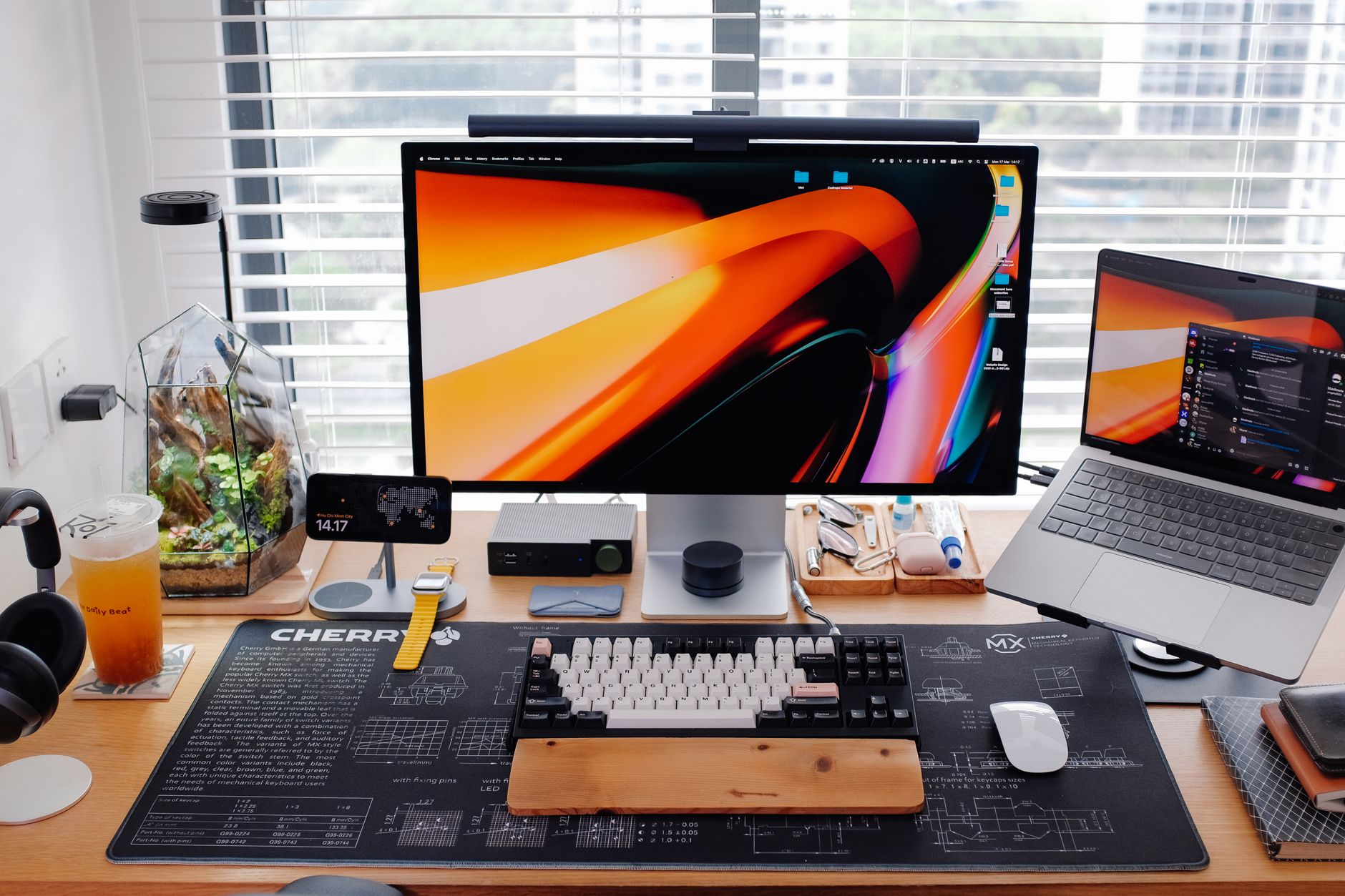
The right monitor makes the difference between a home office that drains you by noon and one that keeps you sharp through the final call of the day. After working through dozens of options, these six monitors deliver the best combination of screen quality, ergonomics, and value for remote workers — whether you’re on a tight budget or ready to invest in a serious setup.
Quick orientation: this list covers monitors from budget to premium, 24" to 34", FHD to 4K. Every pick solves a real problem remote workers face, not just because the spec sheet looks impressive.
1. LG 27UN880-B Ergo — Best All-Rounder for Remote Workers
The LG 27UN880-B earns the top spot by solving the two biggest frustrations of working from home: a cluttered desk and a stiff neck. Its Ergo stand clamps directly to your desk instead of eating up surface space, and the arm gives you full range of motion — tilt, swivel, height, even forward pivot. You can push it aside mid-video call and pull it back without touching a bolt. No other monitor in this price range gives you that kind of flexibility without buying a separate arm.
The screen itself is a 27-inch 4K IPS panel (3840×2160, 163 ppi) with 60W USB-C delivery. Plug in your laptop with a single cable and you get power, video, and data all at once. No dongle sprawl, no second adapter. For freelancers hot-desking between a laptop and a proper desk setup, that one-cable workflow removes a surprising amount of daily friction.
Color accuracy is solid enough for photo editing and design work without needing a separate calibration session out of the box — the panel covers 99% of sRGB with Delta E < 3. HDR10 support is included, though like most monitors in this class, it’s more useful for media consumption than professional HDR grading.
Who it’s for
Remote workers who want a premium daily driver without going full ultrawide. Especially strong for MacBook users, anyone tired of cable clutter, or anyone who moves their monitor around a shared space.
2. Dell UltraSharp U2722D — Best for Color-Accurate Work
 Foto: RDNE Stock project
Dell’s UltraSharp line has been the benchmark for office monitors for years, and the U2722D is the reason why. The 27-inch QHD (2560×1440) IPS panel covers 99% of sRGB and is factory-calibrated to Delta E < 2 — colors are accurate straight out of the box, no adjustments needed.
For designers, marketers, and content creators, this matters more than raw resolution. A monitor that renders your brand’s blue as slightly purple is a liability. The U2722D doesn’t do that.
Beyond color, Dell’s build quality holds up over years of daily use. The stand is rock-solid, height and tilt adjustment are smooth, and the OSD menu is navigable without a manual. The built-in USB-C hub delivers 90W charging — enough to power a 14-inch MacBook Pro at full load — plus four downstream USB-A ports, which effectively turns the monitor into a desk hub. One cable in, four ports out.
Display quality that earns trust
QHD at 27 inches hits the sweet spot for pixel density: sharp enough that text looks clean without requiring display scaling on Windows or macOS. Spreadsheets are readable at 100% zoom, video calls look professional on both ends, and you never squint at menu items. For anyone staring at documents and design files all day, the difference over 1080p is immediate.
3. Samsung Smart Monitor M8 — Best for Smart Features and Minimal Cable Setups
The Samsung M8 takes a different approach: instead of being purely a display, it runs Samsung’s Tizen OS, meaning you can browse the web, run Microsoft 365 apps, stream video, and connect to AWS WorkSpaces or Citrix remote desktops without a PC attached at all. For remote workers who live primarily in the cloud, this can replace an entire desktop computer.
The 32-inch 4K panel is genuinely bright and color-rich — 400 nits peak, with excellent contrast for an IPS-class panel. The slim-fit magnetic camera that clips to the top bezel makes it one of the few monitors purpose-built for video calls. If you spend three or four hours a day on Zoom or Teams, that built-in 12MP camera with auto-framing removes one more peripheral from your desk.
USB-C with 65W charging covers most ultrabooks and productivity laptops. This is a monitor that takes the “home” part of home office seriously — it doubles as a smart TV and speaker, which matters when your office and your living room share the same room.
4. LG 34WN80C-B — Best Ultrawide for Productivity
 Foto: RDNE Stock project
If there is one hardware upgrade that consistently surprises people with how much it changes their workflow, it’s switching to an ultrawide. The 34-inch 21:9 curved IPS panel on the LG 34WN80C-B replaces two standard monitors without a bezel cutting through the middle of your screen.
For anyone who works across multiple windows simultaneously — code on one side, documentation on the other; spreadsheet left, email right — the ultrawide format is simply faster. You stop toggling between windows and start working in parallel. On Windows 11, Snap Layouts fills this screen beautifully. On macOS, Stage Manager was practically designed for it. Either way, context-switching drops and concentration improves.
The 34WN80C-B runs at 3440×1440 WQHD resolution, giving you readable text density without display scaling. USB-C handles charging up to 60W, HDR10 is on board, and the IPS panel handles color well enough for design review work. The curved screen (1900R radius) sounds gimmicky until you use it for a few hours — the gentle curve reduces eye travel at the edges and makes the full width feel natural rather than panoramic.
The ultrawide tradeoff
Some applications still don’t fully support 21:9 layouts, and standard 16:9 video content will pillarbox to fill the extra width. But for productivity work — writing, coding, managing projects, research — the format is unmatched.
5. BenQ GW2780 — Best Budget Monitor That Doesn’t Feel Like a Budget Monitor
The BenQ GW2780 is the answer when someone asks for a solid, no-nonsense 27-inch monitor under $180. It runs 1080p at 60Hz on an IPS panel with BenQ’s Eye-Care technology — a combination of hardware-level low blue light filtering and a flicker-free backlight that measurably reduces eye strain during long evening sessions.
The spec sheet is modest: 1080p is getting long in the tooth at 27 inches, and there’s no USB-C, no HDR, no Ergo stand. But none of that matters if you’re buying your first proper monitor to replace a laptop screen, or adding a secondary display purely for video calls, Slack, and reference documents while your primary screen handles real work.
What BenQ gets right is reliability. The display hits 99% sRGB at factory calibration for a budget panel, brightness is well-set from the start, and the Eye-Care tech works — you feel the difference during a late-night sprint. The Brightness Intelligence+ sensor adjusts backlight automatically as your room lighting changes, which is a feature you don’t expect at this price. For a freelancer setting up a first proper home office without a large budget, this monitor delivers without compromise on what actually matters.
6. Apple Studio Display — Best for Mac Users Who Want Premium

The Apple Studio Display is not for everyone. At its price point, it’s an investment that only makes sense for one specific user: someone deep in the Apple ecosystem doing creative work. For that person, it’s the best monitor you can buy.
The 27-inch 5K Retina panel (5120×2880, 218 ppi) delivers pixel density so high that text looks like print on paper. Photo editing, video color work, UI design — the Studio Display renders all of it with accuracy that no other monitor at this size matches outside of professional reference displays costing several times more. The nano-texture glass option (available at extra cost) eliminates glare in window-facing offices without sacrificing brightness.
It integrates deeply with macOS: Center Stage keeps you in frame during video calls, Spatial Audio from the six-speaker system fills a small room, and the 96W Thunderbolt 3 connection charges a MacBook Pro while providing a single-cable connection to everything. The 12MP ultra-wide camera is the best built-in webcam on any monitor, period.
The honest caveat
Outside the Apple ecosystem, the Studio Display ranges from overpriced to pointless. No Windows or Linux support, no standalone smart features, and the tilt-only stand costs extra to swap for a VESA mount. Buy this if you’re all-in on Mac. Skip it if you’re not.
Quick Summary: Top Picks by Category
| Need | Pick |
|---|---|
| Best all-rounder | LG 27UN880-B Ergo |
| Best color accuracy | Dell UltraSharp U2722D |
| Best smart features | Samsung Smart Monitor M8 |
| Best for productivity | LG 34WN80C-B Ultrawide |
| Best budget pick | BenQ GW2780 |
| Best for Mac | Apple Studio Display |
Most remote workers will be happiest with either the LG 27UN880-B or the Dell U2722D. Both are 4K-capable, both have USB-C, and both are built to last. The difference comes down to ergonomics (LG’s Ergo stand wins) versus color accuracy (Dell’s factory calibration and 90W charging win).
❌ Common Mistakes to Avoid
 Foto: RDNE Stock project
Buying by size alone. A 32-inch 1080p monitor looks noticeably worse than a 27-inch 4K because the pixels are too spread out — you can see the grid at normal viewing distance. Resolution and size have to match. Aim for at least QHD (1440p) at 27", or 4K at 32".
Ignoring panel type. TN panels are cheaper but have visibly worse color accuracy and narrow viewing angles — colors shift when you move your head. For any work-from-home use, choose IPS or an IPS-equivalent like LG Nano IPS. VA panels are worth considering only if you need high contrast for dark-room use.
Skipping USB-C if you have a modern laptop. A monitor with USB-C charging means one cable between your laptop and desk. Without it, you’re back to a power brick, a separate video cable, and a dongle every time you sit down. The workflow cost adds up.
Not accounting for your room’s lighting. A high-brightness monitor in a dark room causes eye fatigue within an hour. A glossy-panel monitor facing a window creates constant glare that no brightness setting fixes. Check your environment before buying — matte-finish panels are almost always safer for home offices.
Overlooking the stand. A monitor that can’t adjust to your seated eye height will cause neck and shoulder pain within weeks, regardless of how good the panel is. If a monitor’s stand only tilts, budget for a monitor arm. This is not optional ergonomics — it’s the single biggest factor in whether you can use the setup comfortably all day.
If We Could Only Pick One…
Go with the LG 27UN880-B Ergo.
The Ergo stand solves your desk space problem before you even think about the display. The 27-inch 4K IPS panel is accurate, bright, and genuinely comfortable for long sessions. The single-cable 60W USB-C connection works with every modern laptop. The price sits where you get professional-grade quality without the Apple tax or the ultrawide learning curve.
It makes the fewest compromises for the widest range of remote workers — and it’ll still feel like the right call two years from now.
Ready to upgrade your setup? Check current pricing on the LG 27UN880-B and the Dell UltraSharp U2722D — both regularly go on sale, and either one will make your home office feel like a place you actually want to work.
Frequently Asked Questions
What are the main frustrations of working from home that the best monitors solve?
Cluttered desks and neck strain. The LG 27UN880-B solves both with an Ergo stand that clamps to your desk and provides full range of motion—tilt, swivel, height, and forward pivot.
Why is USB-C delivery important in a work from home monitor?
A single USB-C cable delivers power, video, and data simultaneously, eliminating dongle sprawl and reducing daily friction for remote workers juggling multiple devices.
Can a work from home monitor be used for design and photo editing?
Yes. Quality 4K IPS monitors like the LG 27UN880-B cover 99% of sRGB with Delta E < 3, providing solid color accuracy for design work without requiring separate calibration.


