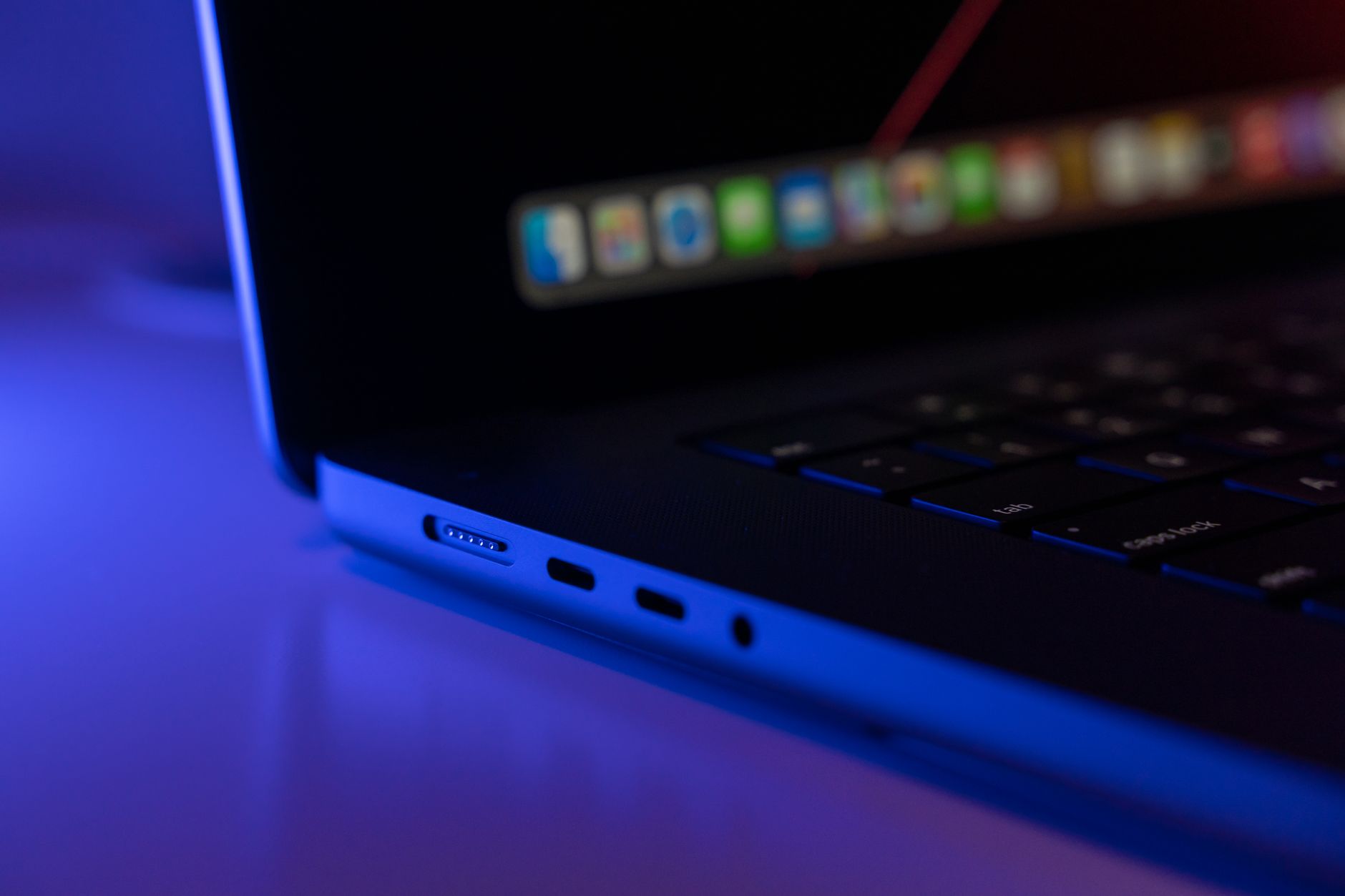
What’s the best USB-C monitor for MacBook home office work? That’s the question most remote workers are Googling at 11pm after their second video call of the day left them squinting at a 13-inch screen. The short answer: any USB-C monitor that delivers at least 4K resolution, 60W+ power delivery, and a single-cable connection will transform your setup — but the right pick depends on your budget, desk space, and whether your MacBook is M1/M2/M3 or older Intel hardware.
Let’s work through every question worth asking before you spend $300–$1,000 on a display.
Does Any USB-C Monitor Work With a MacBook?
Mostly yes — but “USB-C” covers a wide range of standards, and not all of them do the same thing.
A USB-C port on a monitor can be:
- USB-C with DisplayPort Alt Mode — sends video signal, usually charges your MacBook too
- USB-C with Thunderbolt 3/4 — faster, supports daisy-chaining, full 96W charging
- USB-C power-only — handles charging but won’t transmit video
The safest label to look for on the monitor spec sheet is “USB-C with DisplayPort Alt Mode + Power Delivery.” That combination means one cable handles video, power, and USB hub duties all at once.
All modern MacBook Pro and MacBook Air models (M1 onward) have Thunderbolt 3 or 4 ports, which are backward-compatible with USB-C DisplayPort Alt Mode monitors. So you won’t be locked out of anything — you just might not get the full bandwidth Thunderbolt offers unless the monitor matches it.
What About the Single-Cable Connection?
This is the main reason people upgrade to USB-C displays. Instead of plugging in a separate power brick, HDMI cable, and USB hub, one cable does everything:
- Video signal up to 4K@60Hz (or higher on premium models)
- Up to 96W of power delivery — enough to charge a 16-inch MacBook Pro under load
- USB-A and USB-C hub ports on the monitor for your peripherals
If you’ve ever looked down at your desk and counted five cables running to your laptop, you’ll understand why this matters.
Will It Work With Older Intel MacBooks?
Yes. Intel MacBook Pros from 2016 onward all have Thunderbolt 3 ports in a USB-C form factor. They’ll connect without adapters. Just verify the monitor’s power delivery wattage — older MacBooks charge fine at 30–45W, but newer M-series chips benefit from 65W or more.
How Much Resolution Do You Actually Need?
 Foto: RDNE Stock project
For home office work, 4K (3840×2160) is the sweet spot. Here’s why it’s worth the premium over 1080p or 1440p:
Text clarity — macOS renders fonts beautifully on Retina-quality displays. At a typical desk distance of 50–70cm, 4K on a 27-inch monitor looks as sharp as a MacBook’s built-in Retina screen. 1080p at the same size looks noticeably soft — especially with macOS’s font rendering, which exposes pixel gaps that Windows tends to smooth over.
Screen real estate — at 4K, macOS scales the display so everything looks crisp while still fitting more content on screen than a standard HD monitor.
Future-proofing — once you’ve worked on 4K, going back feels like putting on someone else’s glasses.
That said, 1440p (2560×1440) is a legitimate middle ground — especially on monitors 24 inches or smaller, where pixel density is already high. If your budget is tight, a quality 1440p IPS panel beats a cheap 4K VA panel every time.
Does Refresh Rate Matter for Office Work?
For spreadsheets and writing, 60Hz is fine. Where you’ll notice the difference is scrolling through long documents, moving windows, and anything requiring smooth motion.
If you split your home office use with light gaming or video work, bump up to a 144Hz display with AMD FreeSync or NVIDIA G-Sync. Most USB-C monitors top out at 60Hz at 4K, so going higher typically means dropping to 1440p or 1080p — check the spec sheet carefully.
What Should You Look for in a MacBook USB-C Monitor for Home Office?
Beyond resolution and refresh rate, here’s what separates a frustrating purchase from a daily driver you’ll love:
Panel type
- IPS — accurate colors, wide viewing angles, ideal for design and general office use
- VA — higher contrast ratio (typically 3000:1 vs. 1000:1 for IPS), better for dark rooms, slight color shift at angles
- OLED — stunning blacks and color, but expensive and prone to burn-in with static office content like taskbars and docked windows
For most remote workers, IPS is the default choice. Color accuracy matters more than contrast depth when you’re looking at documents and video calls all day.
Power delivery wattage
| MacBook Model | Minimum PD Needed | Recommended PD |
|---|---|---|
| MacBook Air M1/M2/M3 | 30W | 45–65W |
| MacBook Pro 14" M3 | 60W | 70–96W |
| MacBook Pro 16" M3 | 70W | 96–140W |
| Intel MacBook Pro 15/16" | 85W | 87–96W |
A monitor that only delivers 45W to a 16-inch MacBook Pro will charge it slowly under heavy CPU load — the battery may still drain during sustained video editing or back-to-back Zoom calls.
USB hub ports
Look for at least two USB-A ports and one additional USB-C port on the monitor itself. This lets you plug in a keyboard, mouse, USB drive, and webcam through the monitor rather than daisy-chaining hubs.
Brightness and glare
For bright home offices or desks near windows, aim for 300–400 nits minimum. Matte panels help significantly — glossy screens look premium out of the box but become mirrors in natural light.
Which USB-C Monitors Are the Best for MacBook Right Now?
 Foto: Andy Barbour
Here’s a straightforward comparison of monitors that work well with MacBook setups across different budgets:
| Monitor | Size | Resolution | Refresh | Power Delivery | Best For |
|---|---|---|---|---|---|
| LG 27UK850-W | 27" | 4K | 60Hz | 60W | Best overall under $400 |
| Dell U2723D | 27" | 4K | 60Hz | 90W | Best for color accuracy |
| BenQ PD3220U | 32" | 4K | 60Hz | 85W | Best for creative pros |
| LG 32UN880-B (Ergo) | 32" | 4K | 60Hz | 60W | Best ergonomic arm design |
| Samsung ViewFinity S8 | 32" | 4K | 60Hz | 65W | Best for minimalist desks |
| Philips 279C9 | 27" | 4K | 60Hz | 65W | Best budget 4K USB-C |
LG 27UK850-W remains one of the most recommended monitors in MacBook communities. It covers 95% of the DCI-P3 color gamut, delivers 60W of USB-C charging, and includes a built-in KVM switch for toggling between two computers — handy if you use both a personal and work MacBook.
Dell U2723D bumps power delivery to 90W, making it the better pick for 16-inch MacBook Pro users who don’t want to compromise on charging speed. Dell’s IPS Black panel also pushes contrast to 2000:1 — meaningfully better than the 1000:1 you get from standard IPS panels.
BenQ PD3220U targets creative workflows — Thunderbolt 3 connectivity, daisy-chaining support, and factory-calibrated color accuracy with a Delta E < 2 rating. At around $700, it’s expensive, but worth every dollar if color-critical work is your livelihood.
Philips 279C9 is the budget pick that doesn’t embarrass itself. Its IPS panel delivers accurate color, and 65W PD handles MacBook Air and 14-inch MacBook Pro charging without an external brick. It runs around $300 new and goes on sale regularly — a strong entry point if you’re not ready to spend Dell or LG money.
Do You Need a Thunderbolt Monitor or Is USB-C Enough?
For most remote workers: USB-C with DisplayPort Alt Mode is enough.
Thunderbolt 3/4 monitors unlock two specific advantages:
- Daisy-chaining — connect two monitors from a single MacBook port
- Higher bandwidth — supports 5K resolution and faster data transfer to connected drives
If you’re running a single 4K display and aren’t moving large files through the monitor’s USB ports constantly, you won’t notice a practical difference between Thunderbolt and USB-C DisplayPort.
The price jump is real, though. Thunderbolt-certified displays can cost three to five times more than a comparable USB-C monitor. The LG UltraFine 5K — once the go-to external display for MacBook Pro users — has been discontinued, which reflects how thin the market is for high-premium Thunderbolt displays outside Apple’s own lineup.
What About Apple’s Own Displays?
The Apple Studio Display (27", 5K, Thunderbolt) is genuinely excellent for MacBook users — the integration is seamless, the Center Stage webcam tracks you automatically during calls, and the screen is gorgeous. At $1,599, it’s a statement purchase.
If budget isn’t a constraint and you want zero friction with macOS, it’s worth considering. If you’d rather spend $400–$600 and get 90% of the experience, the LG or Dell options above deliver real value.
How Do You Set Up a USB-C Monitor With a MacBook the Right Way?
 Foto: lecroitg
Setup is simple, but a few steps make the difference between a smooth experience and troubleshooting headaches:
Step 1 — Use the included cable (or a certified one)
The USB-C cable that ships with the monitor is spec’d for full bandwidth. Third-party cables vary wildly — a cheap cable can limit you to 1080p or drop power delivery below spec. If you need a longer run, buy a cable explicitly rated for USB-C 3.2 Gen 2 with 100W PD. Cables over 2 meters can also degrade signal quality, so keep your run under 1.8m where possible.
Step 2 — Configure display scaling in macOS
Go to System Settings → Displays → your monitor → and choose the scaling option. macOS defaults to “Looks like 2560×1440” on a 4K display — this is the sweet spot where everything is sharp and you have useful screen real estate. You can push it further to fit more content, but text gets smaller.
Step 3 — Check power delivery is working
Click the battery icon in your menu bar and look for “Charging” when the cable is connected. If it says “Not Charging,” either the cable is underpowered or the monitor’s USB-C port doesn’t support PD to your specific MacBook’s requirements.
Step 4 — Set refresh rate explicitly
Some monitors default to 30Hz on first connection. Go to System Settings → Displays → and verify “60 Hertz” is selected. The difference between 30Hz and 60Hz for everyday scrolling is significant — 30Hz makes the cursor feel like it’s dragging through water.
Can You Use Two USB-C Monitors With a MacBook?
This depends entirely on your MacBook model, and it’s where things get complicated.
MacBook Pro M2/M3 Pro and Max — supports up to two external displays natively (three on Max chips). Connects through Thunderbolt ports directly.
MacBook Pro M1 Pro/Max — same as above, up to two or three external displays.
MacBook Air M1/M2/M3 — officially supports only one external display. Connecting a second requires a DisplayLink-based dock, which uses software rendering. It works, but there’s a slight performance overhead and some users report minor rendering glitches with fast-scrolling content.
MacBook Pro 13" M1/M2 — also limited to one external display without a DisplayLink dock.
If dual monitors are essential to your workflow and you’re on a MacBook Air or entry MacBook Pro, look at docks from Plugable or CalDigit with DisplayLink chips — the CalDigit TS4 and Plugable UD-4VPD are both reliable. They’re a solid workaround, though not as seamless as native Thunderbolt output.
The fastest upgrade you can make to a MacBook home office is replacing cable clutter and a cramped screen with a single USB-C monitor that handles everything through one connection. Pick based on your MacBook’s power needs first, panel quality second, and size third — and you’ll have a display that earns its desk space for years.
Ready to upgrade? Start with the LG 27UK850-W for an all-around performer under $400, or go with the Dell U2723D if power delivery and color accuracy take priority. Either way, your back, eyes, and next video call will thank you.
Frequently Asked Questions
Does any USB-C monitor work with a MacBook?
Most USB-C monitors work with modern MacBooks (M1 onward) if they have DisplayPort Alt Mode and Power Delivery. This combination ensures one cable handles video, power, and USB hub duties simultaneously.
What is the advantage of a single-cable USB-C connection?
A single USB-C cable provides video up to 4K@60Hz, up to 96W power delivery for charging, and USB hub ports—eliminating separate power bricks, HDMI cables, and external hubs.
Is Thunderbolt 3/4 required or does USB-C DisplayPort Alt Mode work?
USB-C with DisplayPort Alt Mode is sufficient for most MacBook home office setups. Thunderbolt 3/4 offers faster bandwidth and daisy-chaining, but standard DisplayPort Alt Mode delivers excellent performance for productivity tasks.


