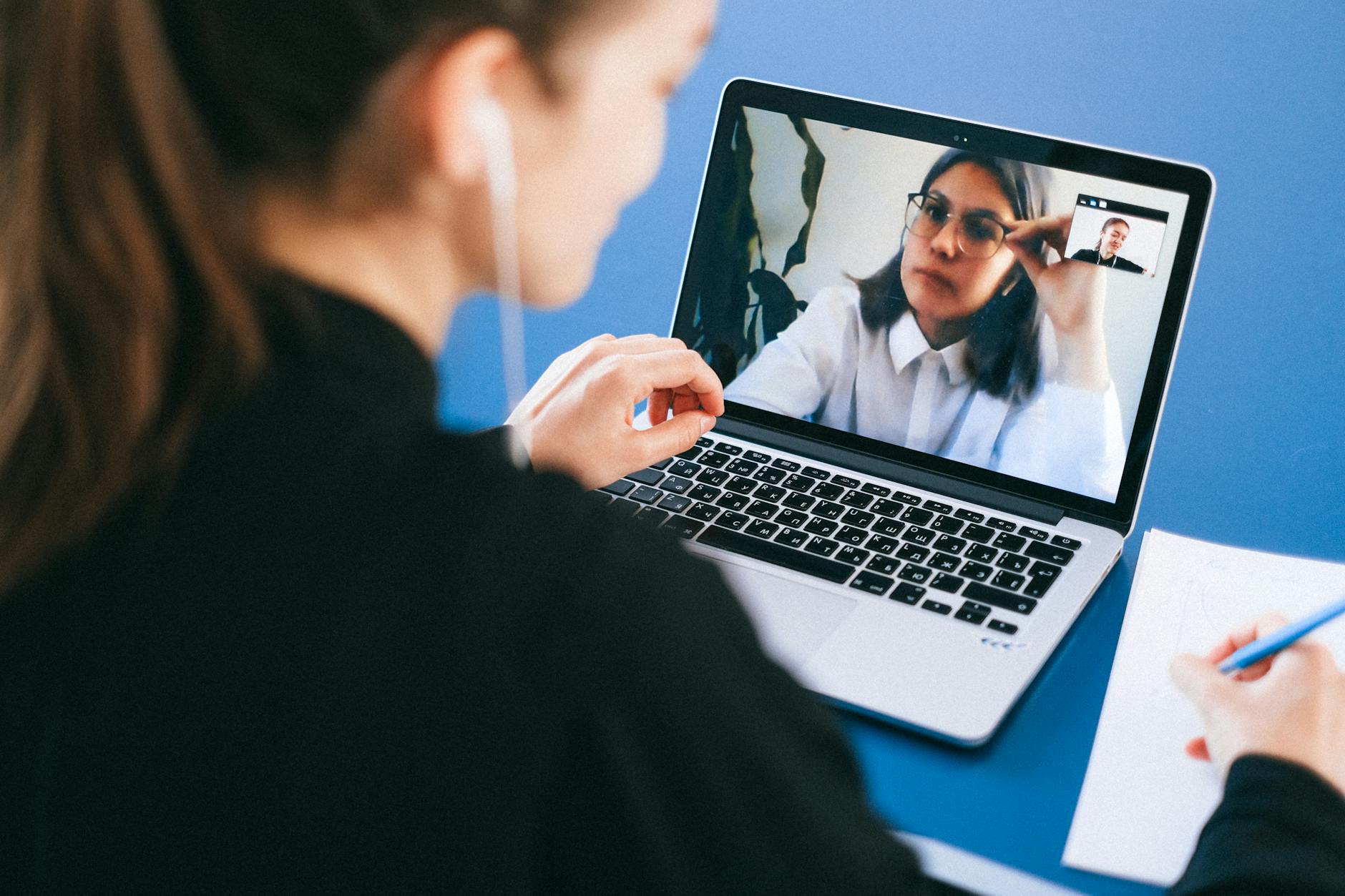
Seventy-three percent of remote workers say they’ve lost confidence in a colleague or candidate after a pixelated, poorly lit video call. That’s not a soft preference — that’s a credibility gap you’re handing over before you’ve said a single word.
The problem isn’t Zoom. It isn’t your internet connection. It’s that the webcam built into most laptops was designed around 2012 hardware economics, when cameras were for occasional video chat, not eight hours of daily professional presence. A $1,200 laptop routinely ships with a 720p webcam that performs worse than a 2016 smartphone.
If you’re in client-facing roles, managing distributed teams, or selling anything over video, your webcam is a communication instrument. This guide identifies exactly what separates a camera that functions from one that earns trust.
Why Built-In Cameras Keep Failing You
Laptop manufacturers budget roughly $4–8 in component cost for the integrated webcam. That gets you a small sensor, a fixed-focus lens, and basic exposure control. In controlled office lighting — overhead fluorescents, consistent natural light — the gap is tolerable. In real home office conditions, it collapses.
Three technical factors account for most of the quality difference:
Sensor size. Most laptop cameras use sensors between 1/10" and 1/5". Dedicated webcams start at 1/3" and scale up. A larger sensor captures more light, which directly produces less grain and more accurate color in imperfect conditions.
Processing pipeline. External webcams run their own image signal processors (ISPs) for noise reduction, white balance, and sharpening in real time. Built-in cameras offload most of that to the CPU, producing inconsistent results depending on system load.
Field of view and optics. Built-in cameras are locked at 60–70° with no adjustment. Many dedicated webcams offer 78–90° adjustable FOV — enough to frame yourself properly without pushing your face toward the screen.
The net result: an $80 external webcam from Logitech almost universally outperforms the built-in camera of a laptop costing ten times as much.
What Actually Matters When Choosing a Webcam
 Foto: Diva Plavalaguna
Most buyers anchor on resolution and miss the variables that actually drive call quality. Understand these decision axes before looking at models.
Resolution vs. Sensor Quality
1080p is the practical ceiling for most video platforms. Zoom, Teams, and Google Meet cap standard calls at 1080p and frequently throttle to 720p on congested connections. Buying a 4K webcam for Zoom calls is a permissible choice — 4K sensors downsampled to 1080p produce sharper output — but it’s not the primary lever.
What matters more:
- Sensor size (bigger = better low-light performance)
- Frame rate (30fps is acceptable; 60fps meaningfully reduces motion blur when you gesture)
- Autofocus speed (critical if you lean forward or shift position during calls)
- Low-light threshold (measured in minimum lux; under 5 lux is excellent)
Glass and Field of View
A wider lens (78°+) is useful if you run a large monitor setup or use a standing desk — the camera frames you correctly regardless of distance. Anything above 90° introduces barrel distortion that makes the image look like it was shot through a peephole. The 78–82° range is the practical sweet spot for solo desk use.
Software and Ecosystem
Logitech’s Options+, Razer’s Synapse, and Elgato’s Camera Hub provide real-time controls for exposure, white balance, and color correction. This matters more than most buyers realize. Even an average sensor produces excellent output with proper manual tuning; an automatic-only camera can blow out highlights every time you sit near a window. Manual control over your image is a feature, not a premium extra.
The Best Webcams for Zoom Calls: Model-by-Model Analysis
The Performance Tier ($150–$250)
Logitech Brio 4K remains the benchmark at this price. Its 1/2.5" sensor — significantly larger than most competitors — handles backlit conditions that would destroy sub-$100 cameras. RightLight 4 applies HDR processing that preserves highlight and shadow detail simultaneously. At 1080p/60fps, motion is smooth enough for expressive speakers who gesture frequently.
The Brio defaults to 82° field of view, adjustable digitally to 65° or 90°. For home offices with large windows or lighting that shifts throughout the day, this is the camera that handles variability without manual intervention.
Elgato Facecam takes a different approach — no 4K capture, no automated color processing. It shoots 1080p/60fps using a Sony STARVIS sensor and hands you full manual control via Camera Hub. Users willing to spend 15 minutes calibrating their settings get some of the most consistently sharp footage in this price tier. Uncompressed output is a genuine advantage for anyone recording calls alongside broadcasting them.
Dell UltraSharp 4K is the standout option for Windows professionals. Its 8.3MP Sony sensor produces clean footage, and AI-powered auto-framing keeps you centered if you shift mid-call. Build quality is above average — magnetized desk clip, stable base, physical privacy shutter rather than a firmware toggle.
The Value Tier ($70–$120)
Logitech C920s has close to a decade of field validation. Its 1/3" sensor with Carl Zeiss-certified optics consistently performs above its price. Autofocus is quick and accurate, dual microphones eliminate the need for separate audio hardware in most setups, and exposure control handles the majority of home office scenarios reliably. At around $70, it remains the default entry-level recommendation.
Razer Kiyo Pro brought a 1/2.8" sensor to the $100 tier, with an adaptive light sensor that switches between wide and standard aperture based on ambient conditions. In dim environments, the output is noticeably cleaner than the C920s. The limitation is software — Synapse is resource-heavy and occasionally conflicts with other Razer peripherals.
Poly Studio P5 targets professionals over content creators. Poly’s microphone array processing is best-in-class at this price — hardware-level noise cancellation that outperforms software solutions for home offices dealing with HVAC, traffic, or background voices.
Webcam Comparison Table
 Foto: Diva Plavalaguna
| Model | Resolution | FPS | Sensor | Low-Light | FOV | Price (approx.) | Best For |
|---|---|---|---|---|---|---|---|
| Logitech Brio 4K | 4K/1080p | 30/60 | 1/2.5" | Excellent | 65–90° | $180–$200 | Mixed/variable lighting |
| Elgato Facecam | 1080p | 60 | 1/2.8" Sony | Very Good | 82° | $130–$150 | Manual control users |
| Dell UltraSharp 4K | 4K/1080p | 30 | Sony 8.3MP | Excellent | 90° | $180–$200 | Windows professionals |
| Logitech C920s | 1080p | 30 | 1/3" | Good | 78° | $65–$80 | Budget/entry-level |
| Razer Kiyo Pro | 1080p | 30 | 1/2.8" | Very Good | 80° | $90–$100 | Low-light environments |
| Poly Studio P5 | 1080p | 30 | 1/3" | Good | 80° | $90–$100 | Audio-critical users |
Check Current Prices on Amazon: Logitech Brio 4K → | Elgato Facecam → | Dell UltraSharp 4K → | Logitech C920s → | Razer Kiyo Pro → | Poly Studio P5 →
The Variables Most Buyers Ignore
Lighting Outranks Hardware
The highest-ROI upgrade for video call quality is not a webcam — it’s a key light. An $80 Elgato Key Light or comparable LED panel transforms a $70 C920s into footage that competes with setups costing three times as much.
The physics are straightforward: more light means more photons per sensor pixel, which reduces the noise-reduction algorithm’s workload and delivers cleaner color without post-processing overhead. A $200 camera in poor lighting loses to an $80 camera with a proper light source.
Practical setup:
- Position the light at eye level, slightly off-center — not directly above
- Aim for 2700–3000K for warmer, more flattering skin tones
- Avoid mixing color temperatures in the same frame — daylight from a window combined with warm artificial light creates uneven color that’s difficult to correct in-camera
USB Bandwidth and Hub Issues
4K webcams require 400–500 Mbps of USB bandwidth at maximum output. Running one through an unpowered USB hub — or sharing bandwidth with external SSDs, audio interfaces, or other peripherals — degrades quality or causes dropped frames.
Connect your webcam directly to a USB-A or USB-C port on the host machine whenever possible. If a hub is unavoidable, use a powered USB 3.0 or USB 3.1 Gen 1 hub, not USB 2.0.
Platform-Specific Considerations
Zoom’s 1080p HD requires manual activation under Settings → Video → Enable HD. Without it, Zoom caps output at 720p regardless of hardware. Microsoft Teams has the same behavior — 1080p is disabled by default for most accounts and requires admin enablement at the organization level.
A significant number of professionals running 1080p or 4K cameras are broadcasting at 720p without realizing it. Enable HD video in your platform before concluding that your camera upgrade made no visible difference.
Matching Camera to Use Case
 Foto: Antoni Shkraba Studio
Role requirements vary. Here’s how to map your situation to the right tier:
Client-facing consultants, sales professionals, coaches: The Brio 4K or Dell UltraSharp is the correct investment. Video quality is part of your brand. The perceptible gap between $80 and $200 hardware is visible to every client you meet.
Team leads, project managers, internal meetings: The C920s or Kiyo Pro handles this well. Internal credibility is built on consistency — a clean, well-lit 1080p image communicates professionalism without overspending.
Content creators who also use Zoom: The Elgato Facecam’s manual controls and uncompressed output justify the premium. It functions as both a daily call camera and a recording device without swapping hardware.
Shared meeting rooms and conference setups: Look at the Logitech Rally Bar Huddle or Poly Studio P15. Wide-angle room cameras with active speaker tracking are a distinct product category — a desk webcam used as a room camera will underperform in every scenario.
Final Verdict
The default recommendation for most remote workers is the Logitech C920s for well-lit, consistent setups, and the Logitech Brio 4K for variable lighting, window exposure, or daily client-facing calls. That combination covers roughly 80% of professional use cases at a defensible price.
The Razer Kiyo Pro earns its place specifically in dark or dim home offices — apartments, basements, evening work sessions — where its larger aperture sensor is meaningfully better than competitors at the same price.
Any camera in this guide represents a measurable upgrade over your laptop’s built-in hardware. Check current pricing on Amazon or B&H — stock fluctuates, and bundle deals with key lights occasionally bring a complete setup upgrade under $130.
Frequently Asked Questions
Why should you use an external webcam instead of your laptop’s built-in camera?
Built-in cameras use tiny sensors (1/10"–1/5") with fixed optics designed for occasional chat. External webcams feature larger 1/3" sensors and dedicated processors, delivering superior light capture and consistent video quality in home office conditions.
What are the three main technical factors that affect webcam video quality?
Sensor size (larger captures more light with less grain), processing pipeline (dedicated image processors improve white balance and noise reduction), and field of view (external cameras offer adjustable 78–90° vs. fixed 60–70° in laptops).
How much quality difference does an external webcam make compared to a laptop camera?
Laptop manufacturers budget only $4–8 per camera, resulting in 720p quality worse than 2016 smartphones. An $80 external webcam offers dramatically better light performance, color accuracy, and processing—essential for client-facing roles where credibility depends on video quality.


