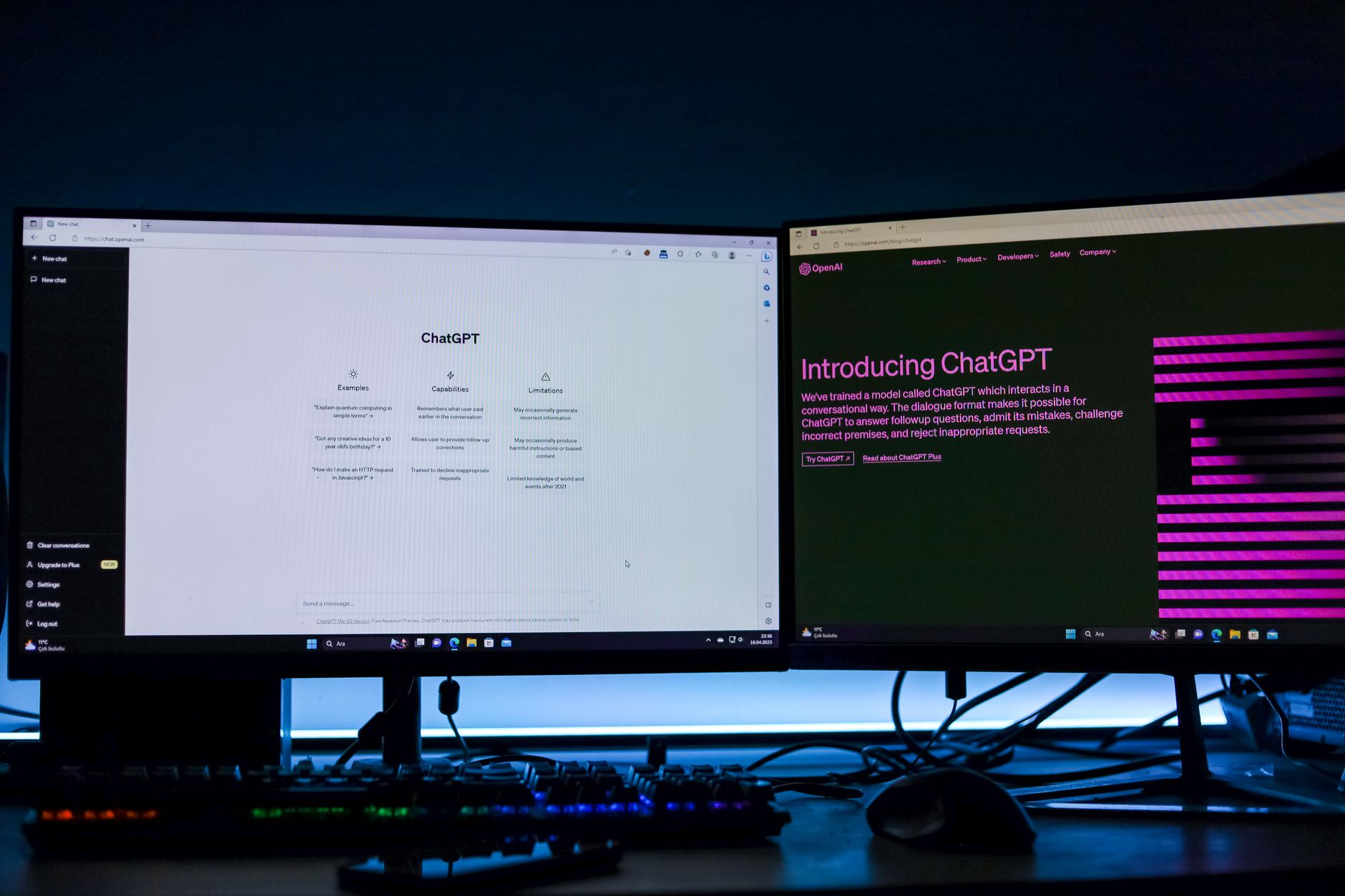
You don’t need a bigger desk. You need a better plan.
That’s the counterintuitive truth most people miss when they’re convinced their 47-inch desk just “can’t” fit two monitors. The real problem isn’t desk real estate — it’s how they’re using the space they already have. A thoughtful dual-monitor setup on a compact desk will beat a cluttered large desk every single time.
If you’re working from a spare bedroom corner, a rental apartment, or a compact home office and you’ve been putting off a second monitor because you don’t think there’s room — this guide will change that.
Why Your Desk Feels Too Small (And Why It Probably Isn’t)
Here’s what’s actually happening: most desks feel cramped because monitors sit flat on stands that eat up depth. A typical monitor stand can take up 8–10 inches of your desk’s front-to-back space before you’ve even factored in the screen itself.
Add a laptop, a keyboard, a mouse, maybe some notebooks and a coffee mug — and suddenly a 48-inch desk feels like a postage stamp.
But the screens themselves? They don’t need to own your desk surface at all.
The fix isn’t a new desk. It’s rethinking your vertical space, your monitor positioning, and the unnecessary gear that’s quietly stealing room. Once you see the setup clearly, fitting two monitors on a small desk isn’t just possible — it’s actually pretty clean-looking.
Step 1: Measure Everything Before You Touch Anything
 Foto: jarmoluk
Skipping this step is why most dual-monitor attempts fail. You guess, you order, and then you’re rearranging a frustrating puzzle with no solution.
Pull out a tape measure and write down:
- Desk width: left edge to right edge
- Desk depth: front to back (the side-to-side space matters most, but depth determines if you’ll need to raise your monitors)
- Desk height: floor to surface (relevant if you plan to add a standing desk converter or riser)
- Wall clearance: how close you can push things to the back wall
Now measure your current monitor if you have one. Note the screen size (diagonal measurement) and the total footprint (width × depth including the stand).
The general rule of thumb:
- 27-inch monitors need roughly 24 inches of width each
- 24-inch monitors need around 21 inches each
- 22-inch monitors fit in about 19 inches of width
On a 47–48 inch desk, two 24-inch monitors sit comfortably side by side. On a 40-inch desk, two 22-inch monitors — or one 24-inch paired with one 22-inch — is your realistic target without raising them.
Don’t forget your viewing distance. You want your eyes 20–30 inches from each screen. If your desk is very shallow, smaller monitors (22–24 inches) actually work in your favor — they don’t require as much distance to be comfortable.
Step 2: Pick the Right Monitor Configuration for Your Space
There are two ways to run dual monitors on a small desk, and the right answer depends on your specific measurements.
Side-by-Side (Horizontal Dual Setup)
This is the most common configuration and works well on desks 44 inches or wider. Both monitors sit at the same height, angled slightly inward so you’re not cranking your neck.
Keep your primary monitor centered and your secondary monitor slightly off to the side — not fully in front of both screens. You shouldn’t be sitting between two equal-distance monitors like you’re watching a tennis match. Your main work screen lives in front of you. The second screen is a reference panel to your left or right.
This arrangement also works if you rotate one monitor to portrait mode. A vertical monitor takes up far less horizontal space — roughly 12–13 inches wide for a 24-inch screen — and is excellent for reading long documents, tracking Slack messages, or keeping a browser open for reference.
Stacked (Vertical Dual Setup)
If your desk is narrow — under 40 inches — stacking is your best option. One monitor sits directly above the other on a monitor arm or a VESA-compatible stand with a vertical extension.
Writers, coders, and anyone doing reference-heavy work do particularly well with this layout. Your primary screen is at eye level; your secondary sits above it. Above is usually more ergonomic for glancing at reference content than below.
The catch: stacking requires VESA mounts or a dedicated dual-stacked arm. Flat-base stands won’t let you do this. But once you’re set up, a stacked dual configuration on a narrow desk looks cleaner than most side-by-side setups.
The Monitor Size Sweet Spot for Small Desks
For most small desk setups, 24-inch monitors are the most practical choice. Large enough to be genuinely useful, compact enough to fit side by side on most desks without the setup feeling overwhelming.
If you’re going side-by-side and your desk is 44 inches or less, consider 22-inch monitors. Two 22-inch screens fit on a 44-inch desk with room left for a keyboard tray or speakers.
Ultrawide monitors are a different story — a single 34-inch ultrawide effectively replaces two 27-inch monitors without doubling the width. If space is your limiting factor, an ultrawide is worth a serious look before committing to two separate screens.
Step 3: Get the Monitors Off Your Desk Surface
 Foto: paulabassi2
This is the highest-leverage change you can make. Monitor stands — even slim ones — take up desk space and lock your screens at a fixed position. Getting rid of them transforms your setup.
Dual monitor arms clamp to the back of your desk and let you position both screens in mid-air. They extend outward, angle, tilt, and rotate on demand. When you’re not using one screen, you swing it aside. When you need it, you pull it back.
Here’s what to look for:
- Weight capacity: Most 24–27-inch monitors weigh 10–15 lbs. Make sure your arm is rated for it.
- VESA compatibility: Check your monitors for VESA mount holes (usually 75×75mm or 100×100mm). Most monitors have them; some budget models don’t — check before you buy.
- Desk clamp vs. grommet mount: Clamps work on most desks. Grommet mounts go through a hole in the desk surface and feel more permanent.
- Single-arm-per-monitor vs. dual arm unit: Dual arm units (both monitors on one clamp) save space at the desk edge. Individual arms give you more independent flexibility.
If a monitor arm isn’t in the budget right now, a monitor riser is a cheaper alternative. It lifts your monitor, freeing up storage underneath and optionally giving you a spot to tuck your keyboard when it’s not in use. It’s not as flexible as an arm, but it recovers some depth on your desk surface at a fraction of the cost.
Step 4: Rethink the Space Around Your Monitors
Once your screens are positioned, the rest of your desk layout determines whether the setup actually works day-to-day.
Keyboard and mouse placement: With two monitors, your keyboard should sit centered on your primary monitor — not in the middle of both. This keeps your neck in a neutral position during heavy keyboard use. A wireless keyboard and mouse eliminate cable clutter and let you slide them aside when you need the desk space.
Desk organizers, vertical space, and shelves:
- A small monitor shelf or wall-mounted shelf above your desk gives you a spot for notebooks, headphones, or a small plant — keeping those off the desk surface.
- Pegboards mounted to the wall behind your setup handle a lot of heavy lifting in compact setups: hooks, small shelves, cord clips, even a headphone hanger.
- A laptop stand with a vertical slot (to hold the laptop like a book) frees up massive desk real estate if you’re running a laptop alongside a monitor.
Clear the non-essentials: The number-one desk clutter culprit isn’t the monitors — it’s everything else. Paper stacks, redundant peripherals, chargers for devices you’re not using. Run a quick desk audit before you set up the dual monitors and pull anything that doesn’t earn its spot.
Step 5: Cable Management Is Non-Negotiable
 Foto: 27707
Two monitors mean at least four cables — two power, two display (HDMI or DisplayPort). Add a USB hub, your keyboard cable, mouse dongle, and whatever else you’ve got, and the back of your desk becomes a nest.
This matters for more than aesthetics. Tangled cables pull monitors out of position, make adjustments annoying, and make an otherwise clean setup feel like a mess.
A few practical fixes:
- Cable raceways: Adhesive plastic channels that run along the back of your desk or down the wall. Clean and cheap.
- Velcro cable ties: Reusable, adjustable, and far more useful than twist ties. Bundle your cables together wherever they run parallel.
- Cable management tray: Mounts under your desk and holds your power strip and cables off the floor. That alone makes a significant visual difference.
- Shorter cables: Most monitors ship with 6-foot cables for a desk that only needs 3 feet. Swapping to shorter cables eliminates the coiled slack you’d otherwise have to manage.
If you’re using a USB-C monitor or a docking station, you might get both monitors running from a single cable to your laptop — eliminating much of the cable complexity upfront. Check whether your laptop supports DisplayLink or Thunderbolt before buying a separate hub.
❌ Common Mistakes to Avoid
Buying monitors before measuring your desk. This leads to returns, regret, or a setup that technically fits but leaves you with zero working space. Measure first, every time.
Placing both monitors equal-distance from center. You don’t use both screens equally. Center your primary. Offset your secondary. Your neck will thank you within a week.
Ignoring monitor arm weight limits. A flimsy arm on a heavy monitor slowly loses its hold — you’ll spend your days adjusting a drooping screen. Buy an arm rated for at least 20% more than your monitor weighs.
Leaving the monitor stands on when you add arms. Some people add monitor arms and forget the base stand is still taking up space. Remove the stand entirely when you mount to an arm — that’s where you reclaim your desk real estate.
Skipping cable management and planning to “do it later.” Later never comes, and unchecked cables get worse over time. Run your cables right the first time — it takes 20 minutes and the result lasts years.
What Your Setup Looks Like When It’s Done Right

When you get this right, the difference is immediate. A small desk with two properly mounted, cable-managed monitors doesn’t feel cramped — it feels like a cockpit. Everything has its place. Nothing is fighting for space.
Your keyboard sits neatly in front of your primary monitor. Your second screen is an arm’s angle away. There’s actual clear desk space — for a notebook, your coffee, a phone stand. The cables are invisible unless you’re looking for them.
Ergonomically, you’re in a better position too. Your monitors are at the right height — top of the screen roughly at eye level — positioned close enough to read comfortably without leaning in. Your neck isn’t torquing to either side.
On the productivity side, Jon Peddie Research found that dual monitors cut task-switching time by up to 30% for knowledge workers. You’re referencing one thing while working on another, and you stop losing context every time you alt-tab.
If We Could Only Pick One Change
If you can only do one thing from this guide — just one — get a dual monitor arm and remove your monitor stands.
That single move frees up the most desk space, gives you the most positioning flexibility, and makes every other part of this setup easier. You can cable-manage later. You can reorganize your layout later. But clearing the monitor footprint off your desk surface is the change that makes everything else possible.
If you’re ready to commit to a full dual-monitor setup, start with your measurements, pick your monitors accordingly, and order your arm at the same time. Same-day assembly, and you’ll be working on two screens by the end of the week.
Got questions about your specific desk dimensions or monitor combination? Drop them in the comments — happy to help you figure out the right configuration for your space.
Frequently Asked Questions
Why do most small desks feel cramped for a dual monitor setup?
Monitor stands typically take up 8–10 inches of front-to-back desk space. When combined with a laptop, keyboard, mouse, and other items, your desk quickly feels crowded. The solution is rethinking your vertical space and monitor positioning, not buying a bigger desk.
What measurements do I need before setting up two monitors on a small desk?
Measure your desk width (left to right), desk depth (front to back), desk height (floor to surface), and wall clearance. These measurements will determine whether you need monitor arms, risers, or other space-saving solutions.
Can I really fit two monitors on a 48-inch desk?
Yes. A thoughtful dual-monitor setup using space-saving solutions like monitor arms and vertical positioning can work on a compact desk. The key is eliminating unnecessary clutter and using your vertical space efficiently.


