
The fastest way to organize desk cables neatly is to group them, route them along a fixed path, and anchor them out of sight — usually under the desk surface using cable trays, raceways, or adhesive clips. That’s the short answer. But if you’ve tried that before and still ended up with a spaghetti pile two weeks later, you’re missing a few key steps that actually make it stick.
What follows covers the full process, in the order you’ll work through it.
Why Does Cable Mess Get Out of Control So Fast?
Most people don’t have a cable problem — they have a cable growth problem. You start with a monitor, a laptop charger, and maybe a keyboard. Then you add a webcam, a USB hub, a desk lamp, a pair of speakers, and a phone stand. Each one brings its own cable, and none of them were designed to coexist neatly with each other.
The other issue is cable length. Manufacturers ship cables long enough to reach across a room because they don’t know where your desk is. That excess slack piles up under your desk and looks like chaos even when everything is technically plugged in correctly.
Fixing this requires two things: controlling the path cables travel, and managing the excess you can’t eliminate.
What’s the Right Order to Tackle Cable Management?
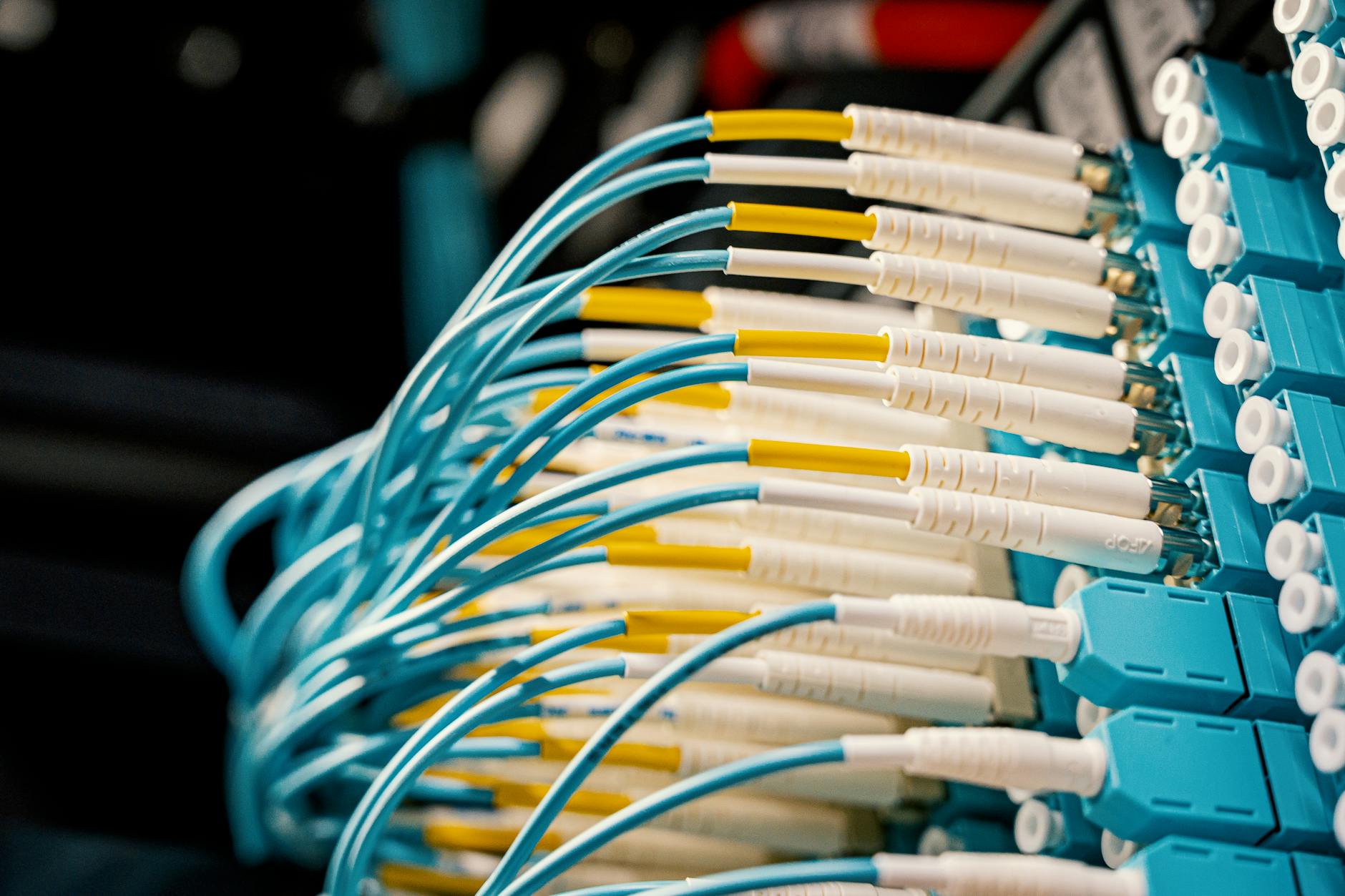 Foto: Brett Sayles
Don’t buy anything until you’ve done this first step: unplug everything and lay it out.
Pull every cable out from behind your desk. Untangle them. Group them by device. Then figure out which ones share a destination — most cables end up at a power strip, a monitor, or a USB hub. That grouping is your routing map.
Start with the power strip
Your power strip is the anchor of your desk ecosystem. Mount it under the desk — almost all of them have screw holes or come with a mounting bracket. Once the power strip is fixed in place, cables stop migrating. Everything has a destination, and that destination doesn’t move.
IKEA’s SIGNUM cable tray (a steel rail you screw under the desk surface for around $15) is a practical starting point, but any under-desk cable tray in the $15–$20 range does the same job.
Then route cables along fixed paths
After the power strip is anchored, route each cable along the edge of the desk, down the leg, or along the back wall — whichever path is shortest. Adhesive cable clips let you pin cables every 6–8 inches so they stay put. Cable sleeves bundle multiple cables into one clean tube if you have three or more running the same route.
What Products Actually Work for Cable Management?
There’s no shortage of gear. Most of it is inexpensive, which means you can test a few approaches without much financial risk. Here’s what’s genuinely worth buying versus what’s mostly packaging.
| Product | Best For | Price Range | Worth It? |
|---|---|---|---|
| Under-desk cable tray | Hiding a power strip + bulk cables | $15–$30 | Yes |
| Adhesive cable clips | Routing single cables along surfaces | $8–$15/pack | Yes |
| Cable sleeve/wrap | Bundling 3+ cables on same path | $10–$20 | Yes |
| Cable raceways | Routing cables down a wall cleanly | $15–$25 | Yes, for wall runs |
| Velcro cable ties | Bundling at the back of the desk | $8–$12/pack | Yes |
| Magnetic cable holders | Desktop cable parking | $10–$20 | Situational |
| Cable box/management box | Hiding a power strip on a desktop | $20–$40 | Yes, if no under-desk space |
Zip ties work in a pinch, but avoid using them for cables you’ll ever need to remove — they make future changes unnecessarily painful. Velcro ties are reusable and let you adjust bundles without cutting anything.
What about cable raceways vs. cable sleeves?
These solve different problems. A cable raceway is a rigid plastic channel that mounts to a wall or the back edge of a desk — great for runs down a wall or along the back of a standing desk. A cable sleeve is a flexible fabric tube that wraps around a bundle of cables — better for shorter runs with multiple cables, like the cluster going from desk surface to floor.
Use raceways where you need structure and permanence. Use sleeves where you need flexibility.
How Do You Actually Hide Cables Under the Desk?
 Foto: Pavel Danilyuk
This is the part most guides skip over, which is why most people’s setups still look messy after they’ve spent $40 on cable management gear.
Mount the power strip horizontally under the desk
The power strip goes up, not on the floor. Cables hanging down to a floor-level power strip cross open air and will always look untidy. When the power strip is under the desk surface, cables travel horizontally and stay hidden behind it.
Most power strips have mounting holes at the back. Screw them directly into the underside of the desk, or use a cable tray that holds the strip inside a basket. Either way, once it’s mounted, you gain a noticeable visual improvement without doing anything else.
Use the desk legs as a cable highway
Desk legs are underused. You can route an entire bundle down a single leg using a cable sleeve or a set of adhesive clips spaced 6 inches apart. This works particularly well for the run from the desk surface to a floor outlet or surge protector.
L-shaped adhesive cable channels attach directly to the leg and look cleaner than a sleeve if your desk is visible from multiple angles.
Leave intentional slack — just loop it
Some cables will always be slightly too long. Don’t try to hide excess slack in random directions. Loop it neatly and secure it with a Velcro tie. A tidy loop under the desk is invisible and makes it easy to move things later without re-routing everything.
How Do You Label Cables So You Can Find Them Later?
If you’ve ever spent 10 minutes tracing a cable to figure out what it’s connected to, you already know this is worth doing.
The simplest method: masking tape with a marker at both ends of each cable, near the connector. A piece of tape labeled “Monitor HDMI” takes 30 seconds and saves you from crawling under the desk every time you need to unplug something.
For a cleaner result, a cable label maker — Brother’s PT-D210 runs about $20 — makes durable labels that won’t peel or smear over time. Most home offices don’t need it, but it earns its keep if you have 10+ cables or reconfigure your setup regularly.
Color-code by device category
Color coding is faster than reading labels in low light. Options include:
- Colored Velcro ties (one color per device category)
- Cables in different colors where possible — many charging and Ethernet cables come in multiple color options
- Small silicone cable tags sold in mixed-color packs
Power cables in one color. Data cables in another. Audio in a third. Once your eye learns the system, you stop tracing cables entirely.
What’s Different About Managing Cables on a Standing Desk?
 Foto: Ron Lach
Standing desks introduce a problem fixed desks don’t have: the surface moves. A cable routed in a straight line from the desk to the floor will go taut at maximum height or pile on the floor at minimum height. Repeated movement — even over a few months — fatigues the cable jacket and can damage the conductors inside.
The proper fix is a cable chain or a retractable cable management arm — both designed for sit-stand desks and built to handle a full height range without stress. FlexiSpot, Uplift, and Autonomous all sell matching cable arms for their desk models, typically in the $30–$50 range.
If you’d rather not spend on an arm, a functional workaround: give every cable crossing the height-change zone a generous loop anchored under the desk with a Velcro tie. The loop absorbs the height change without going taut. Less polished, but reliable.
What devices should stay wireless on a standing desk?
The fewer cables crossing the height-change zone, the better. Good candidates for going wireless:
- Keyboard and mouse — Logitech’s Lightspeed protocol, for instance, advertises 1ms wireless response, indistinguishable from wired for typing and general productivity
- Speakers — Bluetooth is sufficient for voice calls and background audio at a home office desk
- Webcam — wireless options exist, though wired still holds quality advantages at equivalent price points
Keep wired what matters: monitors (HDMI and DisplayPort still outperform wireless display options at practical price points), any latency-sensitive peripherals, and Ethernet if you depend on a stable connection.
Is It Worth Going Mostly Wireless to Solve the Cable Problem?
For some setups, yes — but not as a first move. Wireless gear costs more, requires charging, and introduces its own overhead: keeping batteries topped up, managing USB receivers, tracking down dongles.
The practical split: go wireless for peripherals you move frequently and stay wired for anything that stays in one place. A wireless keyboard and mouse are an easy win. A wireless monitor is not a realistic option for most home offices.
Before investing in wireless gear, run through the cable management steps above. Most setups end up with 4–6 cables after a proper cleanup — which routes cleanly in an afternoon with basic tools and under $40 in materials.
10 Practical Steps to Organize Your Desk Cables Neatly
 Foto: Luna Lovegood
A checklist to work from:
- Unplug everything and lay all cables out flat before touching anything else
- Discard dead cables — anything you haven’t used in six months goes in the bin
- Mount your power strip under the desk using screws or a cable tray
- Group cables by destination before routing them
- Route cables along fixed paths — desk edges, legs, wall runs — not through open air
- Secure cables every 6–8 inches with adhesive clips or a sleeve
- Loop excess slack and secure with a Velcro tie rather than letting it pile up
- Label both ends of every cable
- Color-code by category if you have more than six cables
- Photograph the final result — when something breaks, you’ll know exactly what was where
The biggest obstacle isn’t finding the right product — it’s starting without a plan. Spend 20 minutes sorting and routing before you buy anything, and the right tools become obvious. Most setups come together with a $15 cable tray, a pack of adhesive clips, and a roll of Velcro ties.
For real-world examples, the r/battlestations and r/homeoffice communities on Reddit document actual setups with gear lists — useful for seeing what works across different desk types and room configurations. Your desk doesn’t need to look like a product shoot. But a cleaner cable setup genuinely reduces the low-level friction of sitting at it every day. Start with the power strip.
Frequently Asked Questions
Why does cable mess get out of control so fast?
Cable problems stem from ‘cable growth’ as you add devices, plus excess cable length from manufacturers. Controlling cable paths and managing unused slack prevents chaos.
What’s the right order to tackle cable management?
Start by unplugging everything and laying it out to identify which cables share destinations. Mount your power strip under the desk as the anchor point for your entire cable ecosystem.
Should I buy cable management products before organizing my cables?
No—unplug and map your cables first to understand the best routing path, then invest in products like cable trays, raceways, or clips to implement your plan efficiently.


