Seventy-three percent of remote workers report that background noise has caused them to miss critical information during a meeting at least once a week. That stat comes from a 2023 Jabra study — and it understates the problem. The real issue is not the noise you can hear. It is the noise your microphone picks up that you cannot hear yourself, and that is slowly eroding your professional credibility on every call.
Most people respond by spending money. They buy a new headset, upgrade to a USB condenser mic, or install acoustic foam panels on a home office wall. Some of those choices help. Many do not. The root causes of microphone noise are almost never solved by hardware alone — and understanding that distinction is where most remote workers fall behind.
Why Your Microphone Picks Up More Than You Think
Microphones do not work like the human auditory system. Your brain continuously applies psychoacoustic filtering — suppressing the hum of a refrigerator, the traffic outside, the neighbor’s dog — so you can focus on a conversation. Microphones have no such filter. They capture everything within their pickup pattern at nearly equal weight.
The three primary noise categories that affect remote workers are:
- Ambient noise — HVAC systems, street traffic, appliances. Typically broadband (100Hz–8kHz), hard to isolate at the source.
- Acoustic reflections — sound bouncing off hard walls, desks, and glass. Creates a hollow, room-reverb quality that makes voices sound distant and unprofessional.
- Electrical interference — ground loops, USB power noise, and RF interference from nearby devices. Produces a persistent hum at 50Hz or 60Hz depending on your region’s power grid.
Each category requires a different intervention. Treating all three as the same problem — and reaching for a single product fix — is the mistake most people make.
The 8 Techniques That Actually Work
 Foto: Arjen Klijs
1. Set Your Microphone to Cardioid or Directional Mode
If your microphone has a polar pattern selector, this is the highest-leverage change you can make at zero cost. A cardioid pattern captures sound from the front (roughly a 130-degree cone) and actively rejects sound from the rear and sides — typically by 15–25 dB in the null zone.
An omnidirectional setting captures everything around you equally. It sounds obvious that you would not use that mode for remote work, yet a significant portion of USB microphones ship with omnidirectional as the default. Check your microphone’s documentation before assuming its current mode.
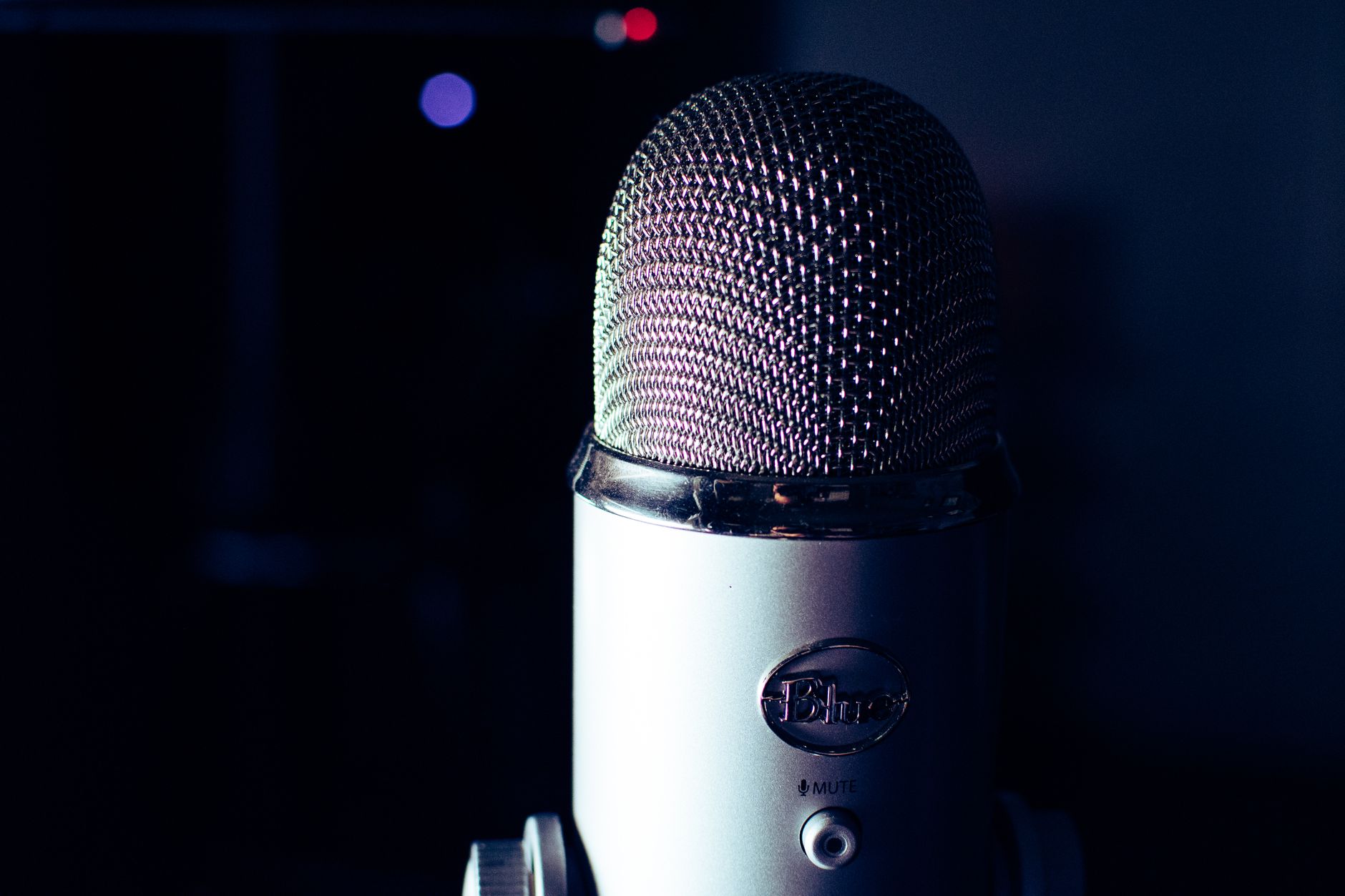
Directional USB mics with hardware polar switches include the Blue Yeti, the Rode NT-USB+, and the HyperX QuadCast. On headset microphones, the polar pattern is fixed and already cardioid — but boom arm placement matters enormously (see Technique 3).
2. Apply Software-Based Noise Suppression
Hardware changes address the source. Software noise suppression addresses what gets through anyway.
There are three tiers of noise suppression software, and the performance gap between them is significant:
Built-in platform filters (Zoom, Teams, Google Meet noise cancellation) use relatively lightweight models. They handle constant broadband noise well but struggle with intermittent, irregular sounds — a dog barking, a keyboard click, a chair scraping.
Dedicated AI noise suppression tools (NVIDIA RTX Voice, Krisp, Dolby Voice, RTX Broadcast) use neural network models trained on thousands of hours of audio. They handle complex, dynamic noise environments with substantially better accuracy. Krisp reports a 95% reduction in background noise in controlled tests, compared to approximately 60–70% for built-in platform filters.
DAW-based noise gates and EQ — for users with audio production backgrounds, tools like Adobe Audition’s Noise Reduction or iZotope RX offer the highest level of control. These are overkill for most remote workers but useful for content creators who double as remote employees.
For the average remote worker, Krisp or NVIDIA RTX Voice (if you have a compatible GPU) provides the best results-to-effort ratio.
3. Position the Microphone Correctly
Microphone position is the most underestimated variable in audio quality. The difference between proper and poor placement can easily exceed 10–12 dB of signal-to-noise ratio — equivalent to moving from a noisy café to a quiet office.
The target: position the capsule 6–10 cm (2.5–4 inches) from your mouth, slightly off-axis (angled away from direct breath path by 15–30 degrees) to minimize plosives. On a cardioid desk mic, the capsule should face your mouth directly. On a boom headset, the mic should rest approximately 2 cm from the corner of your mouth.
The two most common mistakes: placing the microphone too far away (which forces you to increase gain, amplifying background noise alongside your voice), and placing it directly in the breath path (which creates plosive distortion on P and B sounds that no software filter handles cleanly).
4. Address the Room, Not Just the Microphone
Acoustic treatment is often dismissed as too expensive or too permanent for a home office. Meaningful acoustic improvement is achievable for under $50 without permanently modifying the space.
Hard, flat surfaces — walls, desks, uncovered floors — create early reflections that reach the microphone 5–20 milliseconds after the direct sound. This comb filtering effect reduces clarity and makes voices sound hollow. You do not need a fully treated room; you need to reduce reflections in the immediate recording zone.
Practical interventions:
- Position your desk against a bookshelf-lined wall rather than a bare one — bookshelves are effective broadband diffusers
- Place a soft item (jacket, folded blanket) on the desk surface directly in front of the microphone
- Use a reflection filter or portable vocal booth if you cannot treat the walls
- Close windows and internal doors — even a closed interior door reduces street traffic noise by 8–15 dB
5. Eliminate Ground Loops and USB Power Noise
A persistent 50Hz or 60Hz hum that does not respond to noise suppression software is almost always electrical, not acoustic. Ground loops occur when audio equipment is connected to multiple power sources with a slight voltage potential difference between their ground references.
Diagnosis: if the hum disappears when you unplug the microphone from the USB hub and plug it directly into the laptop, the hub’s power supply is introducing the loop. If the hum persists, try a different USB port, then a different cable.
Fixes in order of effectiveness:
- Use a powered USB hub with a clean, regulated power supply
- Connect the microphone directly to the motherboard USB ports rather than front-panel ports
- Use a USB audio isolator (a galvanic isolator inline with the USB cable) — these cost $15–30 and eliminate most ground loop issues permanently
- Switch to a microphone with balanced XLR output and a USB audio interface (the balanced connection rejects common-mode interference)
6. Configure Gain Staging Correctly
Incorrect gain staging causes more noise problems than almost any other single factor — and it is invisible to most users.
If microphone gain is set too high, the microphone amplifies both your voice and the noise floor of the capsule itself. If it is set too low, software or the receiving platform boosts the signal after capture, amplifying whatever noise slipped through.
The target input level: -12 to -6 dBFS peak when speaking at normal conversational volume. This leaves headroom for louder moments while keeping the noise floor well below the audible threshold.
On Windows, access this through Settings → Sound → Input → Device Properties. On Mac, System Settings → Sound → Input. Most USB microphones also have a hardware gain knob — start at 50% and adjust to hit the target level.
7. Use Push-to-Talk in Noisy Environments
When ambient noise cannot be eliminated — a shared apartment, a co-working space, a home with children — push-to-talk is one of the highest-reliability techniques available. It guarantees zero noise transmission when you are not actively speaking.
All major platforms support push-to-talk natively. The friction cost is minor once habituated. Meeting participants stop hearing your noise and start hearing only your voice, without any processing latency or artifact from noise suppression algorithms.
The most common objection is that push-to-talk feels unnatural. It does for the first few days. After a week, it becomes automatic — similar to the adjustment period for any new keyboard shortcut.
8. Treat the Source Noise Before It Reaches the Microphone
Everything above is mitigation. Source control — reducing the noise before it reaches your microphone’s diaphragm — is prevention, and it is always more effective.
Concrete source control actions:
- Turn off HVAC during calls if feasible (3–5 minute bursts of silence are manageable in most climates)
- Move mechanical keyboards to another desk or switch to a silent-switch keyboard if keystrokes are audible on recordings
- Close applications that trigger fan spin-up during calls (video encoding, cloud sync, and antivirus scans are common culprits)
- Communicate your call schedule to household members with a simple visual signal — a closed door, a light indicator
Microphone Noise Reduction: Technique Comparison
| Technique | Cost | Effort | Noise Reduction | Best For |
|---|---|---|---|---|
| Cardioid polar pattern | Free | Low | 15–25 dB (off-axis) | Ambient + reflections |
| AI noise suppression (Krisp/RTX) | Free–$96/yr | Low | ~60–95% of background | Complex, dynamic noise |
| Correct mic positioning | Free | Low | 10–12 dB SNR gain | All noise types |
| Acoustic treatment (budget) | $20–$80 | Medium | 5–15 dB reflections | Reverb, echo |
| USB isolator (ground loop) | $15–$30 | Low | Eliminates hum entirely | Electrical noise only |
| Gain staging correction | Free | Low | Varies (5–20 dB) | Noise floor issues |
| Push-to-talk | Free | Medium (habit) | 100% when not speaking | High-noise environments |
| Source noise control | Free–varies | High | Variable | All noise types |
What the Data Tells Us About Priority
 Foto: Carlos Santos
A controlled study by audio research firm AV Magazine (2022) compared professional audio setups against consumer USB microphones with software noise suppression in identical room conditions. A $60 USB microphone with Krisp enabled outperformed a $400 condenser microphone with no noise suppression in perceived clarity scores from listeners.
You do not need expensive hardware to sound professional on remote calls. You need correct technique applied in sequence:
- Eliminate electrical noise at the source
- Set correct polar pattern and gain staging
- Position the microphone correctly
- Apply software suppression for what remains
- Treat the room if reflections are audible
- Use push-to-talk in uncontrolled environments
Hardware upgrades belong at the end of this list, not the beginning. Most people do it backwards.
The Compounding Effect
None of these techniques is transformative in isolation. Combined, they are.
A cardioid pattern removes 20 dB of off-axis noise. Correct positioning adds another 10–12 dB of signal-to-noise ratio. Software suppression removes 70–90% of what remains. Acoustic treatment eliminates the reverb that makes voices sound amateurish regardless of noise level. The result is audio that is not merely “acceptable for a home office” — it is indistinguishable from a professional studio recording in the context of a business call.
Most remote workers underestimate how much this matters. Multiple studies on remote work perception show that audio quality correlates more strongly with perceived competence and authority than video quality does. Participants in meetings consistently rate unclear audio as a sign of disorganization or lack of preparation, regardless of the actual content being communicated.
You can have the most insightful contribution in a meeting and lose half its impact to microphone noise.
Final Verdict
 Foto: Dany Kurniawan
The most effective approach to reducing microphone noise is not a product — it is a diagnostic process. Start by identifying which category of noise you are dealing with (ambient, acoustic, or electrical), then apply the relevant techniques in order of cost and effort, starting with free changes.
If you want a single starting point: install Krisp or enable your platform’s noise suppression, adjust your microphone gain to -12 dBFS peak, and move the microphone to within 8 cm of your mouth. Those three changes take under ten minutes and will improve your audio quality more than most hardware upgrades.
For a complete audit of your remote meeting setup — microphone, camera, lighting, and connection — the Home Office Lab setup guide walks through each component with the same level of specificity. Your setup should be a competitive advantage, not an apology.
Frequently Asked Questions
Why does my microphone pick up more noise than I can hear?
Your brain applies psychoacoustic filtering to suppress background sounds automatically, but microphones capture everything equally within their pickup pattern. This is why you miss sounds during calls that you don’t notice in normal conversation.
What are the three main types of microphone noise?
Ambient noise (HVAC, traffic, appliances), acoustic reflections (sound bouncing off hard surfaces), and electrical interference (ground loops, USB power noise, RF interference). Each category requires a different solution.
Will buying an expensive microphone fix my background noise problem?
Not necessarily. While hardware upgrades like USB condenser mics and better headsets help, the root causes of microphone noise are rarely solved by hardware alone. Technique and microphone placement are equally critical.


