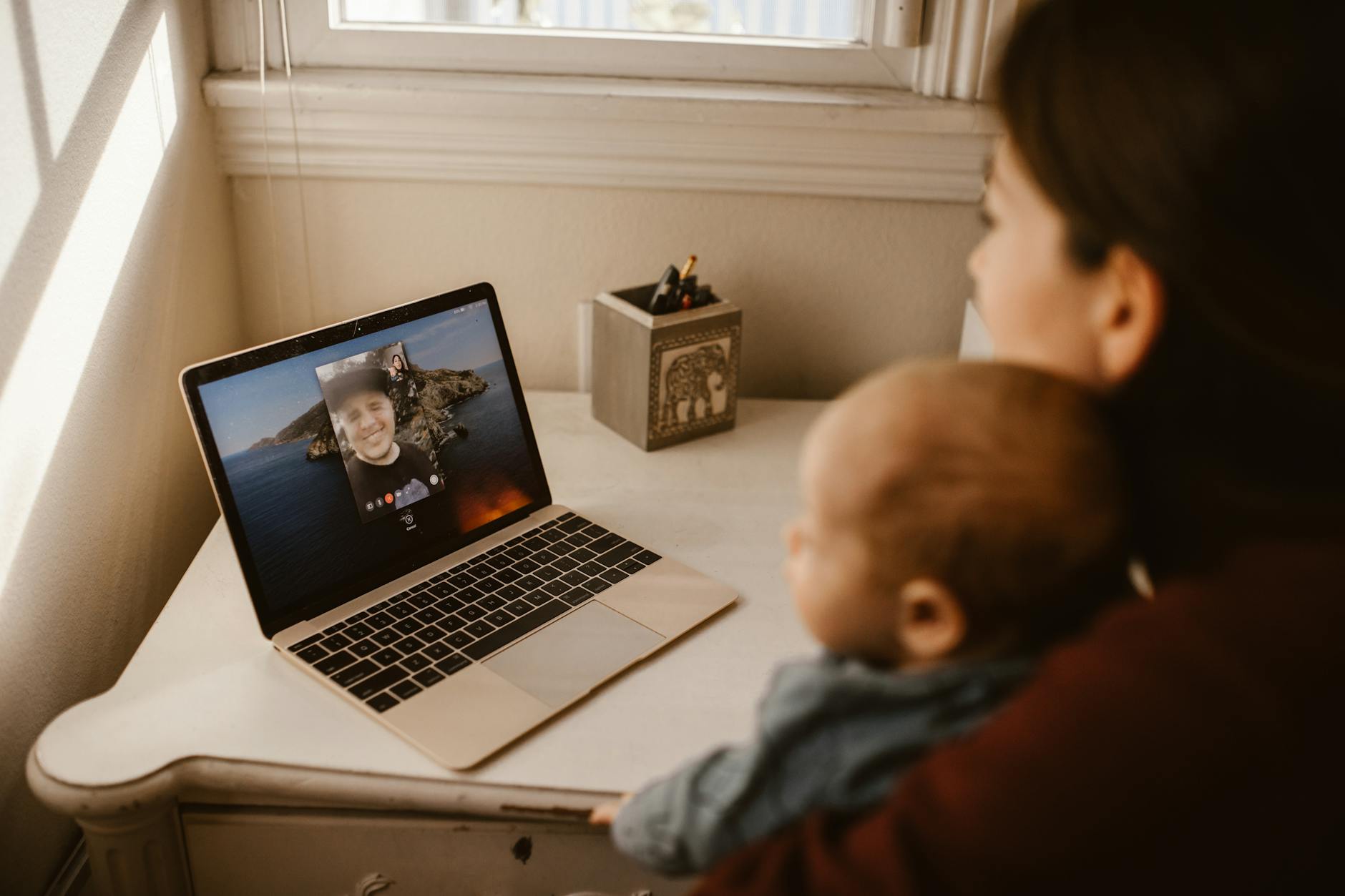
Your desk is roughly the size of a dinner table, your monitor is wedged against the wall, and every time you hop on a video call you’re either too close to the camera — looking like you’re about to confess something — or you’ve backed your chair so far that your colleagues can see your laundry pile.
Sound familiar? This is the real tax of working from a small home office. Standard webcams have a narrow field of view (typically 65–78°), designed for a properly sized corporate desk with room to breathe. On a compact workspace, that tight angle works against you at every turn — cramped framing, awkward positioning, zero flexibility if you want to share a physical document or bring in a second person.
An ultra wide angle webcam solves this cleanly. With a field of view between 90° and 120°, it captures more of your space without requiring you to move back. You get professional framing, a comfortable shooting distance, and the ability to use your desk the way you need to — without rearranging your life before every call.
Here’s how to choose the right one and set it up properly.
Why Field of View Actually Matters for Small Desks
Most people shop webcams by resolution: 1080p, 4K, done. But resolution doesn’t fix framing problems — field of view does.
Field of view (FOV) is the width of what the camera captures. A standard 65° FOV camera placed 60 cm from your face will show mostly your head and shoulders. An ultra wide 110° camera at the same distance captures your full upper body, some desk surface, and enough background to look natural.
On a small desk, that 45° difference is the gap between looking cramped and looking composed.
The Math Behind the Problem
If your monitor is 50–60 cm from your face (standard ergonomic distance), a 65° FOV camera makes you look like a passport photo. You’re too close, the framing is too tight, and you can’t back up without hitting a wall.
A 90–120° FOV camera at that same distance gives you proper headroom, shoulder room, and the relaxed framing you’d expect from a well-set-up studio. No backing up required.
What Happens Without the Right FOV
- You constantly adjust your chair position before calls
- You look unnatural or uncomfortably close on screen
- Sharing physical documents or a second screen is awkward
- Your background gets cut off in unflattering ways
- You can’t present with a whiteboard or secondary display in frame
Choosing the Right Ultra Wide Angle Webcam for Your Setup
 Foto: RDNE Stock project
Specs vary enough between models that picking the wrong one wastes money. Here’s what actually moves the needle.
Field of view: Aim for 90° minimum, with 100–110° being the sweet spot for most small desks. Some cameras go to 120°, which works well for open-plan nooks or L-shaped desks — but at that width, barrel distortion becomes visible on straight lines near the frame edges.
Autofocus: Non-negotiable. On a tight desk you’ll be moving — leaning in, holding up documents, shifting position. Cameras with phase-detection autofocus (like the Logitech MX Brio or Razer Kiyo Pro Ultra) lock focus in under half a second. Contrast-detect autofocus, common on budget models, hunts visibly during motion.
Low-light performance: Home offices rarely have studio lighting. Look for cameras with larger apertures (f/2.0 or lower) or dedicated low-light processing. The Anker PowerConf C300 uses a Sony sensor with solid low-light handling for its price; the Razer Kiyo Pro Ultra shoots at f/1.7.
Resolution: 1080p at 30fps is the floor for professional calls. 1080p at 60fps gives smoother motion if you gesture frequently. 4K adds flexibility for cropping or streaming, but most video conferencing platforms downsample it anyway.
Mounting options: On a small desk, you need flexibility. Check that the camera can clip onto your monitor, sit flat on a surface, or accept a standard tripod thread.
Here’s how some popular models stack up:
| Camera | FOV | Resolution | Autofocus | Best For |
|---|---|---|---|---|
| Logitech Brio 105 | 90° | 1080p/30fps | Fixed | Budget compact desks |
| Logitech C925e | 78° | 1080p/30fps | Yes | Standard setups |
| Logitech MX Brio | 90° | 4K/30fps | Yes | Premium small desks |
| Anker PowerConf C300 | 95° | 1080p/60fps | Yes | Value wide-angle pick |
| Razer Kiyo Pro Ultra | 105° | 4K/60fps | Yes | Power users, streamers |
| Elgato Facecam MK.2 | 90° | 1080p/60fps | Yes | Streamers, creators |
| Insta360 Link | 79°–117° (PTZ) | 4K/30fps | AI tracking | Dynamic small spaces |
Check Current Prices on Amazon: Logitech Brio 105 → | Logitech C925e → | Logitech MX Brio → | Anker PowerConf C300 → | Razer Kiyo Pro Ultra → | Elgato Facecam MK.2 →
For most remote workers on a compact desk, the Anker PowerConf C300 or Logitech MX Brio hits the right balance of FOV, autofocus, and image quality without overspending.
Step-by-Step: Setting Up Your Ultra Wide Webcam on a Small Desk
Getting the camera physically positioned is where most people go wrong. Even the best wide-angle lens can’t save you from a bad mount angle or the wrong placement height.
Step 1 — Choose Your Mount Position
You have three practical options on a small desk:
Monitor top: The default, and usually the best. Clipping the camera to the top center of your monitor puts the lens close to eye level, which creates natural eye contact on calls. It also keeps the camera well within your working zone without taking up surface space.
Desk tripod or mini arm: If your monitor is unusually low, a small desktop tripod or camera arm lets you raise the lens to eye level. This matters more than people expect — a camera below your chin creates an unflattering upward angle and shows the ceiling more than your face.
External monitor arm with camera mount: For full flexibility, a monitor arm with an integrated camera mount lets you adjust screen and camera position independently.
On a compact desk, start with monitor-top. It works in the vast majority of setups.
Step 2 — Set the Height and Angle Correctly
The lens should be at, or just slightly above, your eye level when you’re sitting in your normal working posture. That single adjustment fixes more framing problems than any camera upgrade.
Tilt the camera down very slightly (5–10 degrees) so the frame captures your face and upper chest, with a natural amount of headroom above you. If you can see too much ceiling, tilt down. If you see more desk than face, tilt up.
Common mistakes to fix:
- Camera sitting on desk pointed upward — makes you look enormous, shows your nostrils
- Camera too high angled steeply down — makes you look small and diminished
- Camera offset to one side — creates awkward eye contact geometry
Step 3 — Configure the Field of View in Software
Many ultra wide cameras include companion software (Logitech Options+, Razer Synapse, Insta360 app) that lets you adjust the FOV digitally — even down to a narrower virtual view if you want to crop out a messy background.
Open the companion app and:
- Set FOV to maximum for the widest capture
- Check the framing preview — adjust physical tilt if needed
- Enable digital zoom or crop if your background is distracting
- Turn on auto-exposure if the room light varies during your day
If your camera doesn’t have companion software, you can adjust zoom and framing directly inside Zoom, Teams, or Google Meet under video settings.
Step 4 — Optimize Your Background and Lighting
A wide FOV captures more — including more of whatever’s behind you. On a small desk in a home setting, that means being deliberate about your background.
Quick background fixes for small offices:
- Position the camera so a wall is behind you rather than an open room
- Use a virtual background or blur if the space behind you is cluttered
- A small bookshelf, neutral wall, or simple desk lamp as a background element looks professional without effort
For lighting, a single source facing you — slightly to one side, at face level — eliminates shadows and makes you look sharp even in a dim room. A $30 LED panel on a small arm is enough. You don’t need a ring light.
Step 5 — Test Before Your Next Call
Don’t trust your own preview — test with a real recording or a test call.
In Zoom: go to Settings → Video and check the preview. Note the framing, check for harsh shadows, and verify the FOV looks natural.
In Teams: go to Settings → Devices → Camera for a live preview.
Watch for:
- Any part of the frame that’s blurry (autofocus issue)
- Background distractions that the wide angle now reveals
- Uneven lighting that washes out your face
- Camera angle that still feels too tight or too wide
Adjust physical position or software settings until it looks right, then save the configuration.
Fixing Common Problems with Wide-Angle Webcams on Small Desks
 Foto: Vanessa Garcia
Even with the right camera and setup, a few issues come up repeatedly in compact home offices.
Problem: The wide angle shows too much background clutter Fix: Use the digital zoom/crop feature in your camera’s app or inside your video conferencing software to pull back the FOV slightly. You’re still wider than a standard camera, but you control what’s in frame.
Problem: The image looks barrel-distorted on straight edges Fix: Most cameras above 95° have some lens distortion. Logitech and Razer apply in-camera correction automatically. If yours doesn’t, use OBS with a lens correction filter if you stream or record, or move slightly farther from the camera to reduce the wide-angle effect.
Problem: Autofocus keeps hunting during calls Fix: Ensure your face is the brightest, most-contrast object in the frame. Autofocus struggles when you’re backlit or competing with a bright window behind you. Reposition so the light hits your face, not your background.
Problem: Video looks grainy in low light Fix: This is a hardware limit — lower-end sensors struggle in dim rooms. Adding a small LED panel or desk lamp facing you will dramatically improve the image. If you frequently work in low light, prioritize cameras with large apertures (f/2.0 or lower) when buying.
What to Expect After the Right Setup
Get the camera positioned correctly with the right FOV and video calls on a small desk stop feeling like a compromise.
You’ll have natural framing without backing your chair against the wall. You’ll be able to hold up documents, reference a second screen, or gesture while speaking without going out of frame. Colleagues will stop asking if something’s wrong with your camera.
More practically: you’ll spend less time adjusting before calls. The camera stays set. Your background stays consistent. You sit down, open the laptop, and you’re ready.
The wider FOV also opens up options that standard cameras can’t match. Two people can share the frame without either of you contorting sideways. Physical presentations and whiteboard sessions become viable. You can include a second monitor in the background without it cutting off mid-screen. None of that is possible with a 65° lens at close range.
Your Next Step
 Foto: Mikhail Nilov
Pick one change to make today. If you already have a camera, start with Step 2 — adjusting the height and angle to true eye level makes a bigger difference than most people expect, and costs nothing.
If you’re shopping for a new camera, the Anker PowerConf C300 is the best starting point for most small-desk setups: 95° FOV, reliable autofocus, 1080p/60fps, and priced well under the Logitech equivalent.
Once the hardware is right and you’ve run through the five setup steps above, your small home office won’t look small on camera anymore — it’ll just look like your workspace, properly framed.
Frequently Asked Questions
Why does field of view matter more than resolution for small desk video calls?
Field of view determines how much of your space the camera captures. A standard 65° FOV camera from 60cm away shows mostly your head and shoulders (cramped framing), while a 90–120° ultra wide camera captures your full upper body, desk surface, and background — giving professional framing without awkward repositioning.
What’s the ideal field of view for a small desk setup?
Ultra wide angle webcams with a field of view between 90° and 120° are ideal for small desks. They capture more of your space without requiring you to move back, providing proper headroom, professional framing, and comfortable shooting distance.
How far should a webcam be positioned from your face?
Standard ergonomic distance is 50–60 cm from your face. At this distance, a 65° FOV camera looks cramped (like a passport photo), while a 90–120° ultra wide camera provides proper headroom and shoulder framing without requiring you to back your chair against a wall.


