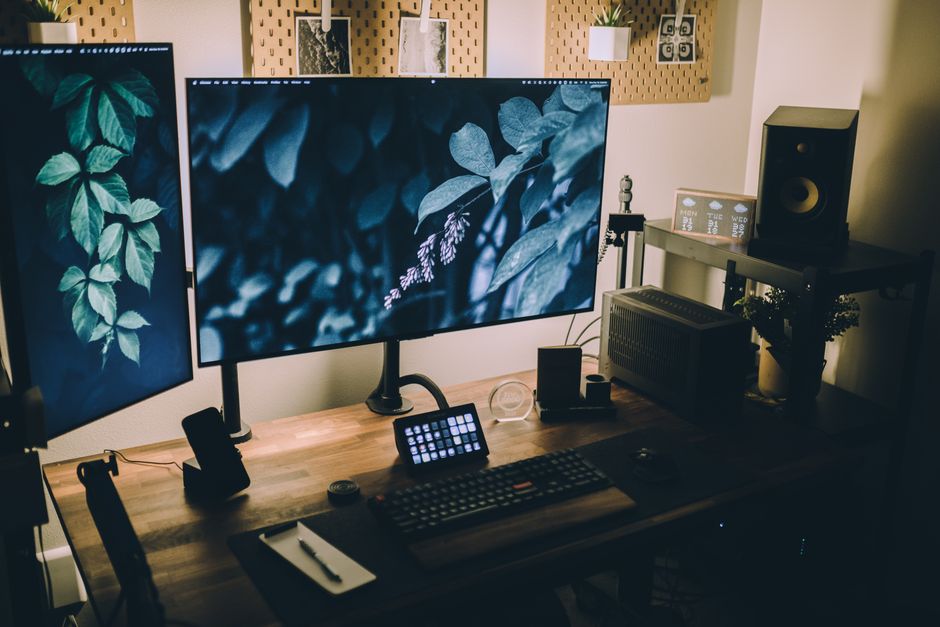
Rotating your monitors 90 degrees and stacking three of them vertically delivers more usable screen real estate for code, documents, and long-form content than a traditional horizontal three-monitor array — without adding a single inch to your desk’s width footprint.
What follows is the research behind that claim, the hardware requirements, and the configuration mistakes that cause most of these setups to underperform.
The Data Behind Multi-Monitor Productivity
Jon Peddie Research found that multiple monitors increase productivity by an average of 42%. The number gets cited without context — and that context matters, because vertical orientation amplifies those gains specifically for text-heavy workflows.
Horizontal monitors are optimized for widescreen video consumption. Vertical monitors match how humans actually read, scroll, and write. The average webpage or code file is longer than it is wide. A portrait-oriented 27-inch monitor at 1440p resolution displays roughly 40% more lines of text than the same panel in landscape mode. Multiply that across three screens and you’re looking at a fundamentally different workspace — not just a bigger one.
A University of Utah study commissioned by NEC found that dual-monitor users completed tasks 18 seconds faster per task and were 10% less likely to make errors compared to single-monitor users. The gains scaled when the second monitor was used for reference material — exactly the use case vertical orientation enables best.
Why Three Screens Hit the Productivity Sweet Spot
Two monitors works well. Four monitors starts to introduce neck strain and attention fragmentation. Three vertical screens sits in the optimal zone for most knowledge workers.
The reason is cognitive load management. With three vertical panels, you can maintain a persistent primary workspace on the center screen, keep reference material (documentation, research, dashboards) on the left, and use the right screen for communication tools, terminals, or output previews — without moving your head more than about 30 degrees in either direction.
Ergonomics research from Cornell University’s Human Factors and Ergonomics Laboratory recommends keeping your primary monitor directly in front of you with secondary screens within a 30-35 degree viewing cone. Three 24-27 inch monitors arranged vertically, placed at proper depth, fit that specification.
The Vertical Advantage in Numbers
When you rotate a 1080p monitor to portrait:
- Resolution becomes 1080 × 1920 instead of 1920 × 1080
- Visible lines of code in a standard IDE increase from roughly 52 to approximately 91 (at 14pt font)
- A full A4 document fits on screen without scrolling at 100% zoom
- A typical browser page renders above-the-fold content 60-70% further down the article
For a full-stack developer running three vertical screens, that means you can view an entire component file, its corresponding test file, and a browser dev tools panel simultaneously — without a single scroll.
Hardware Requirements for a Three-Vertical-Monitor Setup

Getting the physical setup right matters more than most guides acknowledge. Cheap monitor arms introduce wobble. Mismatched resolutions create visual inconsistency. The wrong GPU fails to drive three screens cleanly.
Choosing Your Monitors
Not all monitors rotate cleanly. You need panels with a pivot function — meaning the stand physically supports portrait orientation, or you’re buying dedicated monitor arms anyway.
Recommended specifications for a vertical three-monitor array:
- Size: 24-27 inches per screen. Larger panels in portrait mode push content too far above eye level.
- Resolution: 1080p minimum, 1440p preferred. At 1440p portrait (1440 × 2560), the density is exceptional for text-heavy work.
- Panel type: IPS for color accuracy and wide viewing angles. VA panels show color shift at the off-angle positions your eyes occupy when looking at the left and right screens.
- Refresh rate: 60Hz is sufficient for productivity work. 144Hz is wasted budget unless you’re also gaming.
- Connectivity: DisplayPort 1.2 or HDMI 2.0 minimum to drive 1440p at 60Hz.
Strong options in the 24-27 inch IPS category include the Dell UltraSharp U2722D, LG 27GN800-B (with a separate arm), and BenQ PD2725U. All three pivot natively and hold up well under daily use.
Monitor Arms: The Non-Negotiable Component
Standard monitor stands are not designed for portrait orientation at desk edge. You need a triple monitor arm or three individual arms rated for portrait use.
The most reliable configurations:
- Triple arm clamp mount (e.g., Ergotron LX Triple): Mounts to desk edge, supports independent height/angle adjustment per screen. Rated for monitors up to 34 inches and 11.3 kg each.
- Freestanding triple pole mount (e.g., VIVO STAND-V003O): No desk clamp needed, better for glass desks. Less fine-tuning capability.
- Wall-mount array: Maximum stability, zero desk footprint, but requires drywall anchors or a stud-mount rail system. Best for permanent setups.
VESA compatibility (75×75mm or 100×100mm) is standard on virtually all productivity monitors. Confirm before buying — gaming monitors occasionally deviate.
Configuration Comparison: Vertical vs. Horizontal vs. Mixed
Before committing to a full vertical setup, it’s worth benchmarking against the alternatives. Here’s how the three most common three-monitor arrangements compare across real-world productivity dimensions:
| Configuration | Usable lines of text (center screen) | Desk width required | Neck rotation range | Best for |
|---|---|---|---|---|
| 3× Horizontal (landscape) | ~52 lines at 14pt | 185–210 cm | 50–60° | Video editing, design, gaming |
| 3× Vertical (portrait) | ~91 lines at 14pt | 55–65 cm | 25–35° | Dev, writing, legal, finance |
| 1 Landscape + 2 Vertical | ~52 lines (center) | 110–130 cm | 35–45° | Mixed media + document work |
| 1 Ultrawide + 2 Vertical | ~65 lines (center) | 130–150 cm | 30–40° | Design + reference work |
For text-heavy workflows, the comparison is definitive: a full vertical three-screen array delivers the most content per glance, requires the least desk width, and keeps your neck within ergonomic limits.
The only configuration where horizontal orientation genuinely wins is video editing and high-end graphic design, where a wide timeline or artboard depends on landscape orientation. Developers, writers, legal professionals, analysts, and customer support leads all get measurably more usable workspace from portrait.
Setting Up the Array: Placement, Software, and GPU

Physical Placement
The center monitor should sit at eye level with the top third of the screen at or just below the horizon line. Portrait orientation makes this easy to get wrong — screens are tall, and people routinely mount them too high.
Recommended setup sequence:
- Mount all three arms to the desk or wall before attaching monitors
- Set arm heights so the center of each screen is at eye level (approximately 55-65 cm from desk surface for seated users)
- Angle each monitor 15-20 degrees inward toward your seated position
- Set viewing distance at 60-75 cm for 27-inch screens (closer for 24-inch)
- Confirm neck rotation to reach edge screens is comfortable before tightening all bolts
Cable management is your next priority. Three monitors running DisplayPort or HDMI generate significant cable volume. Use velcro ties — not zip ties — along the arm channels, and route cables behind the desk before they reach the wall.
GPU Requirements
Three monitors at 1440p requires a GPU with at least three video outputs and sufficient VRAM for the framebuffer. The rule of thumb: 4GB VRAM minimum for three 1440p portrait displays in productivity use, 8GB if you run any GPU-accelerated rendering.
Current mid-range GPUs — NVIDIA RTX 4060, AMD RX 7600 and above — drive three 1440p monitors without issue. Integrated graphics on Intel Core Ultra and AMD Ryzen 7000+ series can technically drive three displays but will throttle under load.
Laptop users should note: most laptops only output two external displays simultaneously, regardless of what the marketing materials say. The internal screen counts as display one. A Thunderbolt 4 dock with DisplayLink technology can work around this, but introduces latency that some users notice.
OS-Level Configuration
Windows 11:
- Right-click desktop → Display Settings → Arrange displays to match your physical layout
- Set each monitor’s orientation to “Portrait” individually
- Use PowerToys FancyZones to create custom snap regions optimized for portrait windows
macOS:
- System Settings → Displays → Arrangement
- Hold Option while dragging to fine-tune alignment
- Enable “Displays have separate Spaces” for independent workflow zones per screen
Linux (GNOME/KDE):
- Use
xrandror display settings GUI to rotate (--rotate leftfor portrait) - KDE’s display configuration handles multi-monitor pivot rotation reliably; GNOME occasionally requires manual
xrandrscripting
Common Setup Mistakes and How to Avoid Them
Most three-vertical-monitor setups underperform not because of bad hardware, but bad habits in how the workspace is organized.
Mistake 1: Treating all three screens equally. Your brain needs a primary screen. Designate the center panel as your active workspace and never put passive content there. Dashboards, Slack, email — those live on the flanks.
Mistake 2: Mismatched monitor brightness. Eyes constantly adjusting between 150 nit and 350 nit panels causes fatigue within 90 minutes. Calibrate all three screens to the same brightness (typically 100-120 nits for normal office lighting).
Mistake 3: Ignoring the vertical gap problem. Portrait monitors create a long vertical span. If you’re running a status bar or taskbar at the bottom of each screen, you’re wasting 40 pixels of prime real estate on every panel. Move taskbars to auto-hide, or use a dedicated display manager like DisplayFusion that handles taskbars intelligently across portrait-oriented arrays.
Mistake 4: Wrong cable types. Active DisplayPort cables over 1.8 meters can introduce signal issues at 1440p. Keep cable runs short, or use certified 8K-rated HDMI 2.1 cables for longer runs.
Frequently Asked Questions (FAQ)
 Foto: RDNE Stock project
Does a vertical monitor setup require special software, or does Windows handle it natively?
Windows handles portrait rotation natively — right-click the desktop, go to Display Settings, and set orientation to “Portrait” for each screen individually. Native Windows snap doesn’t optimize well for portrait windows, though. PowerToys FancyZones (free from Microsoft) lets you define custom snap regions and is worth the five-minute setup. macOS handles portrait rotation equally well through System Settings without needing third-party tools.
What’s the ideal monitor size for a three-vertical-monitor array?
27 inches at 1440p hits the best balance between screen real estate and physical manageability. At 27 inches in portrait, the screen height is approximately 67 cm — tall enough to show substantial content, short enough that you’re not straining your neck to see the top. 32-inch panels become unwieldy in portrait orientation and push the top edge above comfortable viewing range for most desk setups. 24-inch at 1080p is the budget-friendly alternative that still works well.
Can I use a laptop as the center screen and add two vertical monitors on the sides?
Yes, but with caveats. The laptop screen in landscape orientation flanked by two portrait monitors is a popular mixed configuration. The visual inconsistency between landscape and portrait takes a few days to stop noticing. The bigger constraint is GPU output: most laptops drive only two external displays. If your laptop has Thunderbolt 4, a DisplayLink dock adds a third output. Some users run the laptop lid closed with an external vertical center monitor and two portrait flanking screens — a cleaner solution that avoids the mixed-orientation cognitive tax entirely.
Your Next Steps
1. Audit your current workflow before buying anything. Open your most-used applications and measure how much you scroll vertically per hour. If you’re scrolling constantly — in a code editor, a CRM, a research document — portrait orientation will directly reduce that friction. If your work is primarily in design tools, spreadsheets, or video editing timelines, a mixed landscape/portrait setup will serve you better than a full vertical array.
2. Start with one vertical monitor before committing to three. Rotate a single secondary monitor to portrait orientation for one week. Use it exclusively for reference material, documentation, or communication tools. This costs nothing and tells you definitively whether portrait works for your visual processing style. Most people adapt within 48 hours; a small percentage finds portrait orientation genuinely uncomfortable and should stick with landscape.
3. Prioritize monitor arm quality over monitor brand. The single highest-impact hardware purchase in this setup is the arm system, not the screens. A premium triple arm like the Ergotron LX gives you precise micro-adjustment that cheap alternatives don’t — and ergonomic precision over an 8-hour workday compounds into meaningful comfort and health differences over months. Budget $150-250 for the arm system and save money on the monitors themselves if needed.
Frequently Asked Questions
How much more text can vertical monitors display?
A portrait-oriented 27-inch monitor at 1440p displays roughly 40% more lines of text than landscape mode. Across three vertical screens, this compounds into a fundamentally different workspace for code and documents.
Why is three monitors the productivity sweet spot?
Three vertical screens balance cognitive load optimally: a persistent primary workspace on center, reference material on the left, and communication tools on the right—without the neck strain and attention fragmentation of four or more screens.
How much does multi-monitor setup improve productivity?
Jon Peddie Research found multiple monitors increase productivity by an average of 42%, with gains amplified specifically for text-heavy workflows like coding, writing, and document review.


